
You’re editing a portrait. Skin looks flat, the lighting’s off, and you’ve got 40 more files just like it sitting in a folder. Going through every one manually? That’s two hours of your day gone.
That’s exactly the problem Photoshop actions are built to solve.
One click runs your entire editing sequence on any photo — and the best part is, you don’t need to spend a penny to get started. There are hundreds of free Photoshop actions out there, covering everything from skin retouching to cinematic film tones to full watercolour painting conversions.
This guide covers 30+ of the best ones, sorted by what you actually need them for. You’ll also find a step-by-step install guide, a walkthrough of Adobe’s new Actions panel (it changed a lot in 2025–2026), and a full FAQ section answering the questions people actually search for.
No fluff. Let’s get into it.
What Are Photoshop Actions? (And Why They Save You Hours)
A Photoshop action is a saved recording of editing steps that you can replay on any image with a single click. Instead of applying the same adjustments manually every time, you record the sequence once and run it on as many files as you need — automatically. Actions are stored as .ATN files live inside Photoshop’s Actions panel.
Think of it like building your own editing shortcut. Say your usual portrait workflow involves sharpening, adjusting levels, warming the skin tone, and adding a vignette. Record those four steps once, give the action a name, and from then on — one click does all of it.
This is especially powerful for batch work. A set of actions can cut a three-hour processing job down to twenty minutes.
Actions can record almost anything: menu commands, filter settings, layer adjustments, color corrections, and more. Most well-made actions work non-destructively — they use adjustment layers, so your original image is never touched and every step stays editable.
You can create your own, or download actions made by other designers and photographers. Thousands of them are available for free.
Quick Picks — Best Free Photoshop Action for Every Use Case
Not sure where to start? Here’s a fast-reference table matching common editing goals to the best free action for that job.
| What You’re Trying to Do | Best Free Action | Where to Get It |
|---|---|---|
| Smooth skin in one click | 5 Skin Retouching Actions | Photoshop Tutorials (SparkleStock) |
| Vintage faded film look | Ultra Faded (11 free actions) | SparkleStock |
| Bold, punchy black & white | Bold B&W HDR | ShutterPulse |
| Soft, romantic wedding feel | Coffeeshop | Fix The Photo |
| Dispersion/explosion effect | Dispersion Effect | PsdDude |
| Polaroid photo look | Polanoid Generator 3 | DeviantArt |
| Photo → watercolor painting | Free Photoshop Watercolors | Adobe Exchange |
| Cinematic old-film tone | 2-Strip Technicolor | Brusheezy |
| Remove white background fast | Remove White Background | Mediamilitia |
| Wintry cool-tone landscape | Winter Blues (10 actions) | Spoon Graphics |
How to Download and Install Free Photoshop Actions
Before anything else, you need to know how to actually get actions into Photoshop. It’s a straightforward process, but there are a few different ways to do it.
Step 1 — Get the .ATN File
Most free actions come packaged as a ZIP folder. Download it, right-click to extract the contents, and look for the file ending in .ATN — that’s the actual action file. Save it somewhere easy to find. Creating a dedicated “Photoshop Actions” folder on your desktop or in Documents works well.
Three Ways to Install Photoshop Actions
Method 1 — Load Actions via the Panel (Most Reliable)
This works on every version of Photoshop.
- Open Photoshop → go to Window > Actions (or press
Alt+F9on PC /Option+F9on Mac) - Click the hamburger menu icon at the top-right of the Actions panel
- Select Load Actions
- Navigate to your .ATN file → click Open
- The action now appears in the panel — select it and click Play to apply
Method 2 — Double-Click the .ATN File
On most setups, double-clicking the .ATN file opens Photoshop and installs the action automatically. Fast and simple. If it doesn’t work, go back to Method 1.
Method 3 — Drag and Drop
Drag the .ATN file directly into your open Photoshop window. Works on most modern versions of Photoshop and takes about two seconds.
One pro tip: Once actions are loaded, go to the panel menu and turn on Button Mode (hamburger icon → Button Mode). This converts all your actions into clickable color-coded buttons — much faster to use once you’ve built up a big library. Also, back your .ATN files up to Google Drive or Dropbox. Reinstalling Photoshop wipes your actions panel, and rebuilding it from scratch is not fun.
How to Use Adobe’s New Built-In Actions Panel (2025–2026)
If you’re on a recent version of Photoshop, the Actions panel has changed significantly. Photoshop 26.6 (April 2025) introduced the redesigned panel in Photoshop Beta, and Photoshop 27.6 (April 2026) brought it into the main release.
Here’s what’s different:
- Natural language search — type what you want to do (“make colors pop,” “add vintage feel,” “soft glow”) and Photoshop shows you relevant built-in actions immediately. No need to know the action’s name.
- Essentials tab — pre-organized categories covering Basic Adjustments, Subject & Background, Creative Effects, Guides, Resize, and Export. Good starting point if you’re new to actions.
- Live hover preview — hover over any action and see the result on your actual open image before applying it. No guesswork.
- Single history state — the whole action applies as one undo step. Don’t like it? One
Ctrl+Zremoves it completely. - Subject/background targeting — apply any action to just the subject or just the background of the image using the three-dot menu next to each action. Very useful for portrait retouching where you want to adjust the background separately.
Your downloaded Classic Actions are still available. Just click the flyout menu inside the Actions panel and select Classic Actions to access them.
Best Free Photoshop Actions for Portrait & Skin Retouching
Portrait photographers use Photoshop actions more than anyone else. Skin retouching is repetitive, time-consuming, and the kind of work that eats hours — especially on large shoots. These actions handle the routine cleanup so you can focus on the parts that actually require a creative eye.
Skin Smoothing & Touch-Up Actions
5 Skin Retouching Actions — Photoshop Tutorials (by SparkleStock)
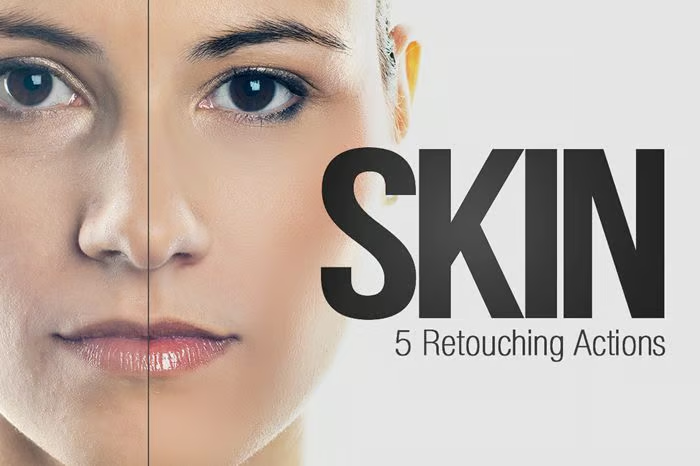
One of the most practically useful free sets available. Gives you five separate one-click actions: heal blemishes, mattify shiny skin, full airbrush smoothing, brighten eyes, and increase eye contrast. Use them individually or layer them depending on how much the photo needs. Works well for beauty portraits, professional headshots, and editorial work.
Soft Skin Tones — Turning Turnip
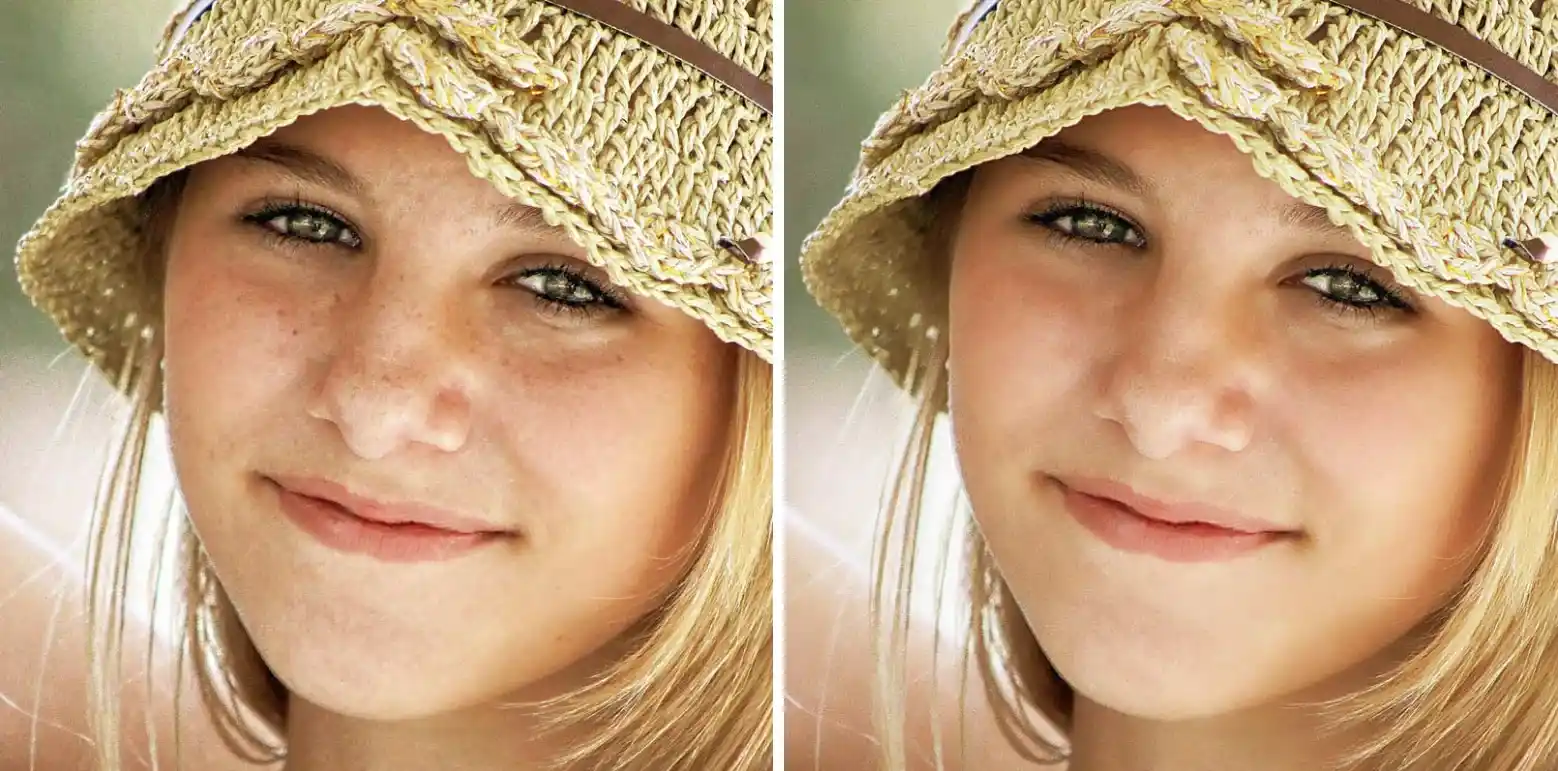
Designed to be used alongside a selection or mask, so you target only the areas you want to smooth. It softens skin texture while preserving the natural colour and underlying detail. Good for when you need subtle results — not the full airbrushed look, just a light cleanup that doesn’t look touched.
FixThePhoto Portrait Actions —130 Free Photoshop Portrait Actions
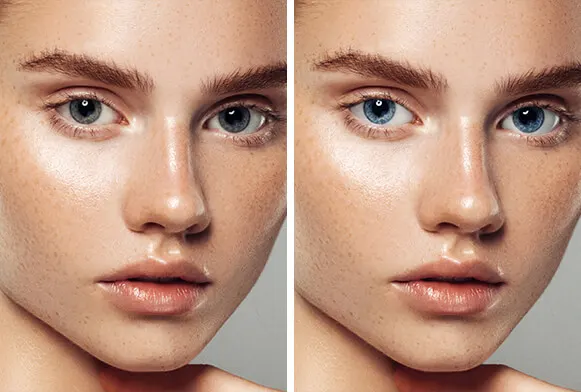
Six free portrait actions compatible with Photoshop CS3 through to the current CC version, plus Photoshop Elements 11–18. One of the few free packs that explicitly supports both RAW and JPG files in the same workflow.
Brusheezy Skin Retouching Set — Brusheezy
Five focused actions: Mattifier, Skin Airbrushing, Brighten Eyes, Redness Reducer, and a contrast adjustment that keeps skin from looking flat. Each one is separate, so you can apply only what a specific photo needs.
Full Portrait Workflow Actions
Coffeeshop — Fix The Photo
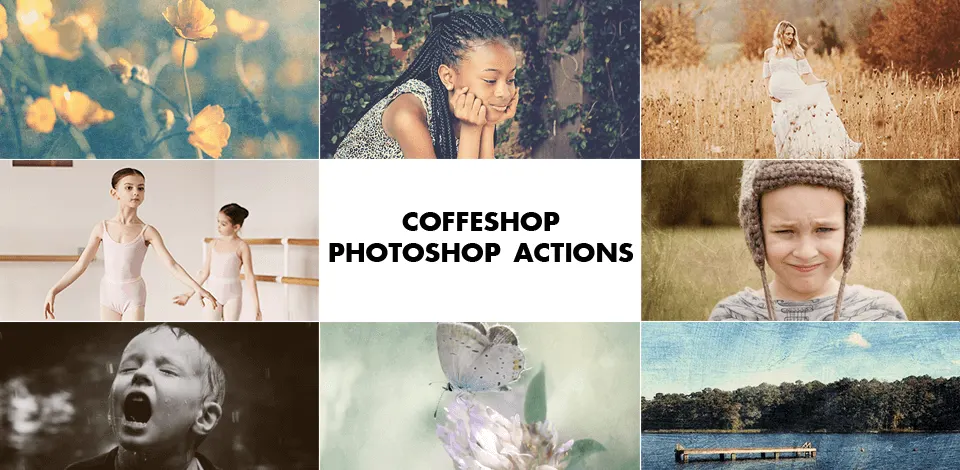
Originally popular for wedding and children’s portrait photography. These actions soften the overall image to create depth without making it look over-filtered. They help balance out skin tone inconsistencies and make lighting feel more dynamic. A solid everyday portrait action for photographers shooting in mixed or tricky lighting.
Reduce Motion Blur — Turning Turnip
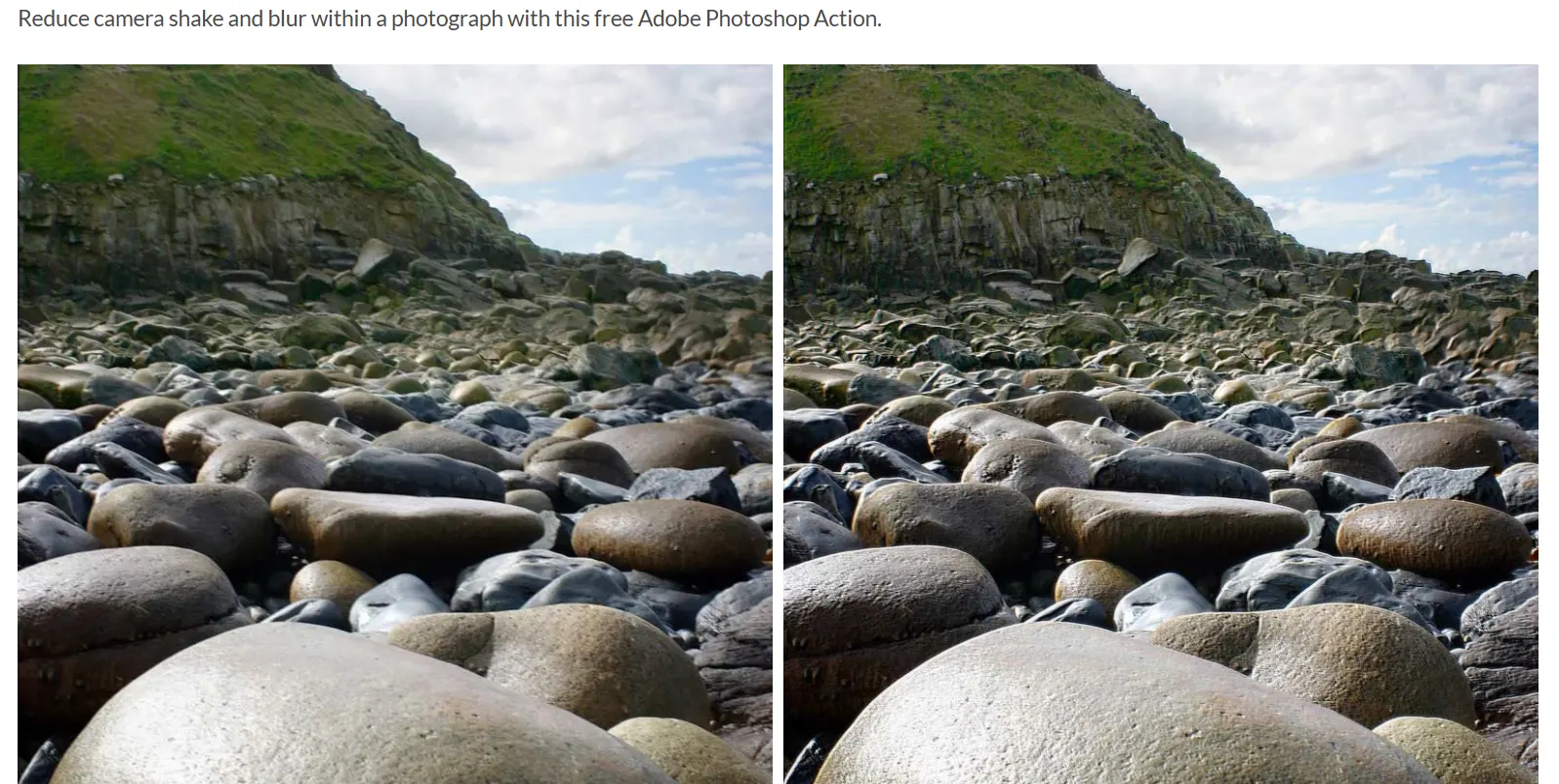
Camera shake happens. This action removes mild motion blur from shots where the subject or camera moved slightly during exposure. It won’t save an extreme blur, but for a small shake on an otherwise great photo, it’s genuinely useful.
Best Free Photoshop Actions for Landscape & Outdoor Photography
Landscape editing is mostly about mood. Colour temperature, contrast, and atmosphere do the heavy lifting — and these actions are built to handle all three.
Cool Tone & Winter Landscape Effects
Winter Blues — Spoon Graphics
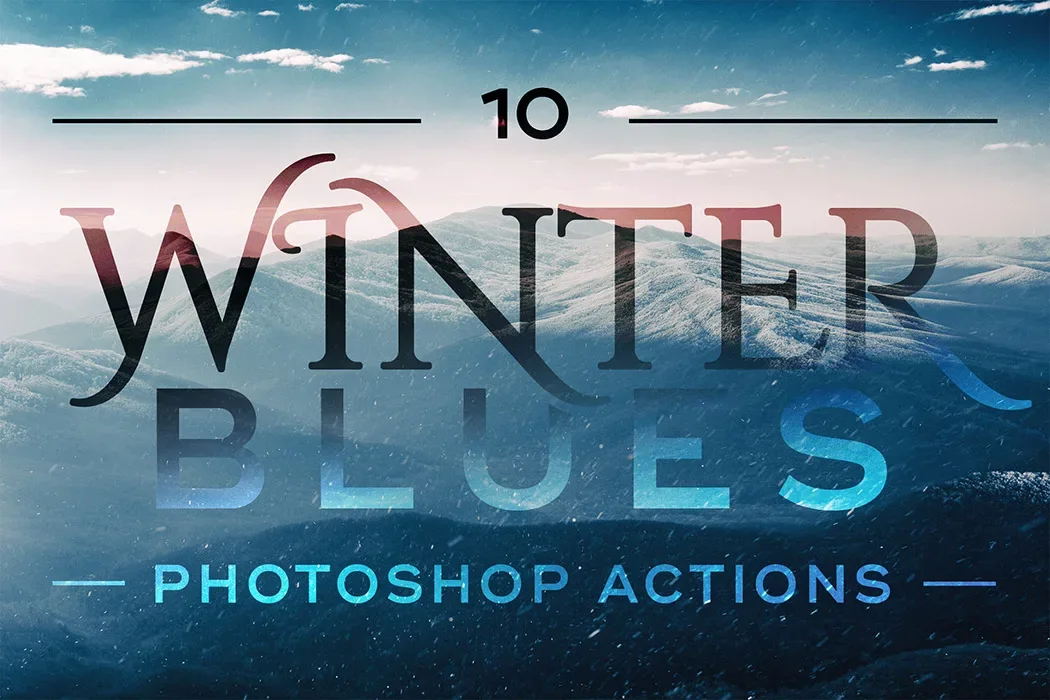
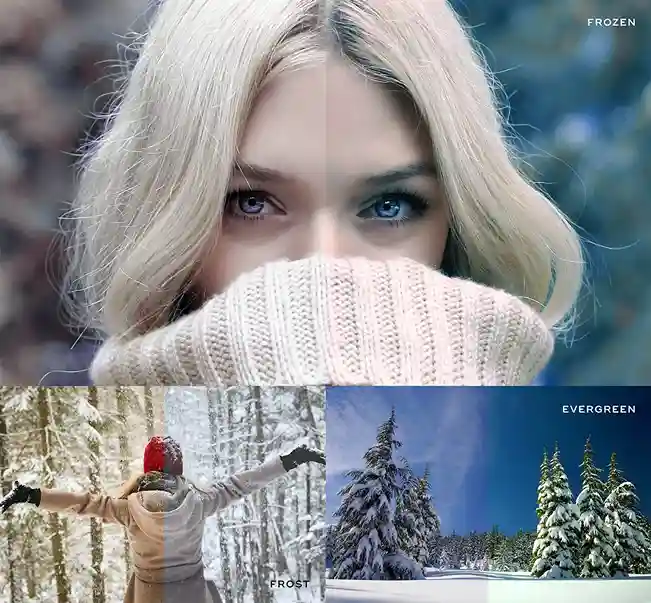
A pack of 10 separate actions, each with a different style of cool, subtle hue enhancement. If you shoot outdoors in grey or overcast weather and want to make those shots feel intentional rather than flat, this pack covers a wide range of approaches in one download.
Infrared Photography — DeviantArt
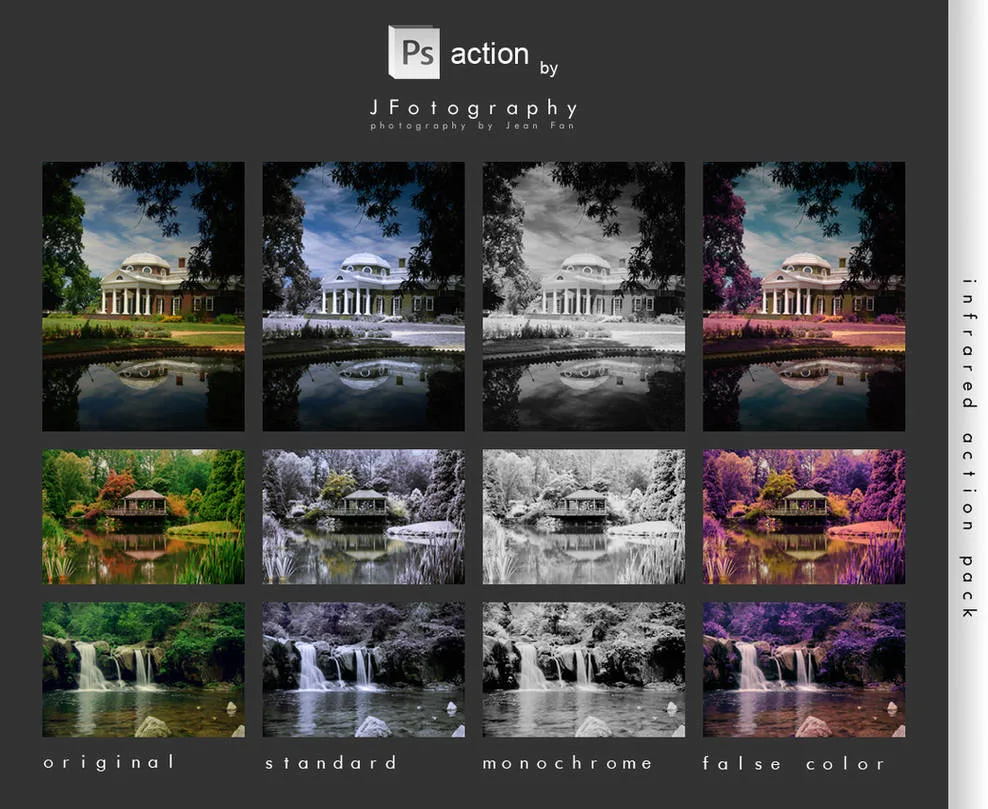
Recreates the look of infrared film photography — where foliage appears white and skies go dark and dramatic. The action creates two adjustment layers inside a layer group, giving you independent control over the red and blue channel balance as well as the overall contrast. Works best on landscapes with trees, fields, or water.
Warm Light & Atmospheric Effects
Mystical Light — DeviantArt (by Megan Joy)
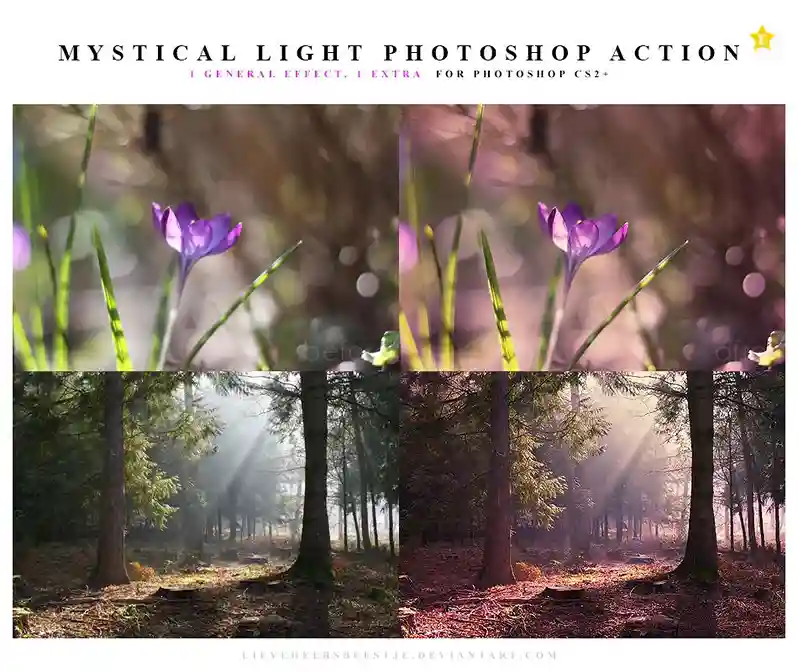
Adds an ethereal purple and golden light tone to landscape shots. It’s not for every photo, but for shots taken at golden hour, in forests, or near water, it creates an atmosphere that’s genuinely hard to fake manually. Works especially well on images that already have interesting natural light.
Hazy Afternoon — The CoffeeShop Blog
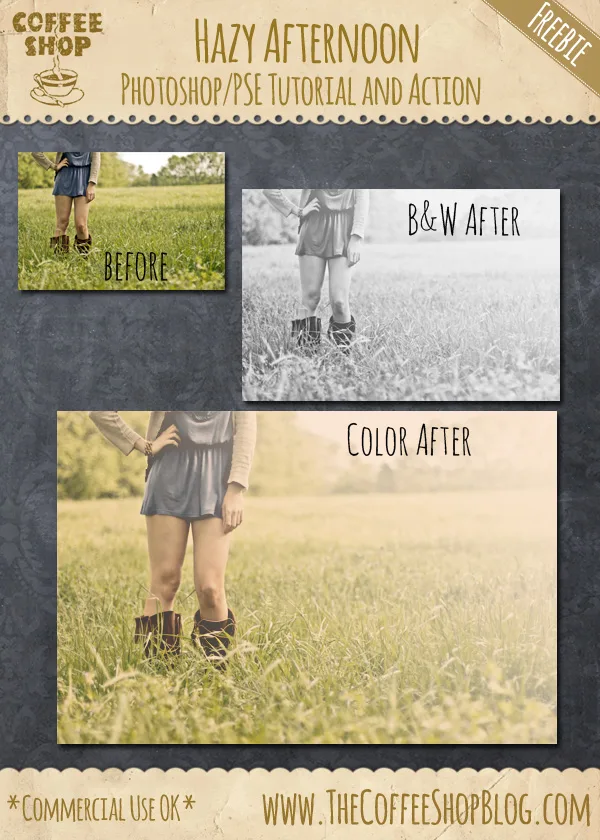
Adds a soft gradient colour wash over the image. Works on both colour and black & white photos, and the gradient is fully adjustable so you can control how subtle or strong the effect is. Good for outdoor lifestyle photography, travel images, and any work that needs a soft editorial feel.
Bella — DeviantArt
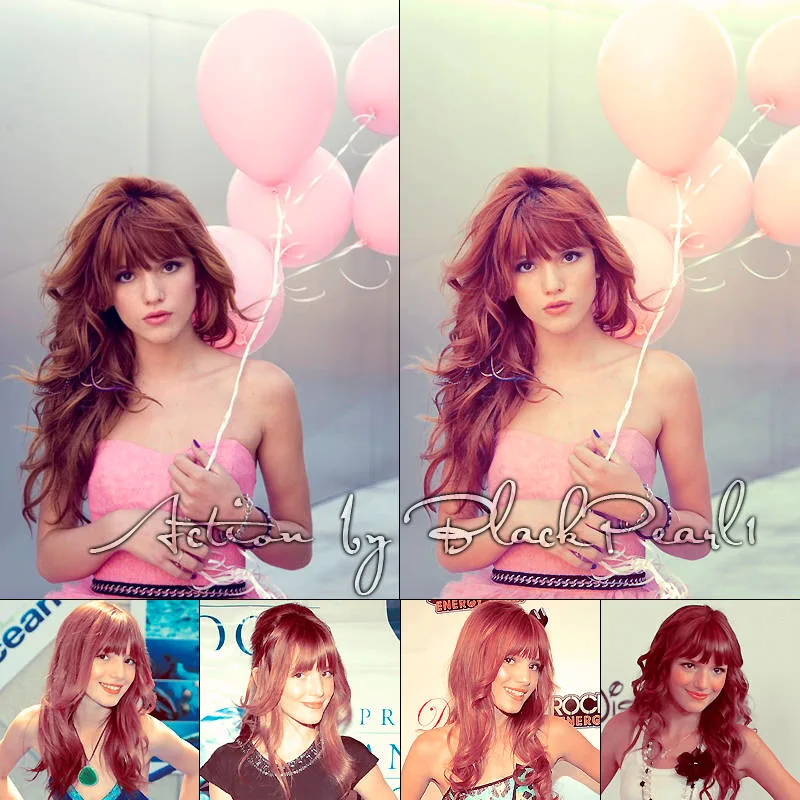
Warms the overall tone with a soft pink cast that brings out richness in hair and skin. Also works well on nature shots — flowers, forests, golden hour. Gives photos a romantic, nostalgic quality without going heavy-handed.
Best Free Photoshop Actions for Vintage & Film Effects
Vintage film effects are consistently one of the most searched photo editing styles, and when they’re done well, they add a warmth and character to digital photos that’s genuinely hard to achieve manually. These actions simulate analog processes that would take significant darkroom knowledge to replicate by hand.
Analog Film & Cross-Process Simulation
Cross Process — Fix The Photo
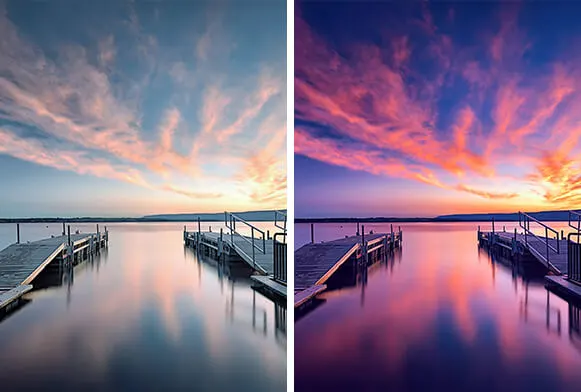
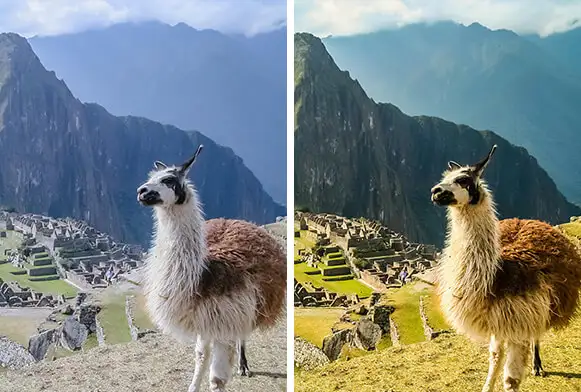
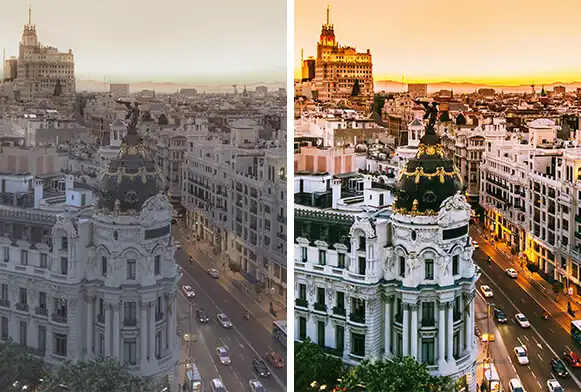
Cross-processing is an old darkroom technique where film is deliberately developed in the wrong chemical solution — the result is unusual colour shifts, boosted contrast, and elevated saturation. This set includes 6 different cross-process effects, each producing a distinctly different colour cast. Good for fashion, editorial, and anything that needs a bold, unconventional look.
Ultra Faded — Photoshop Tutorials (by SparkleStock)
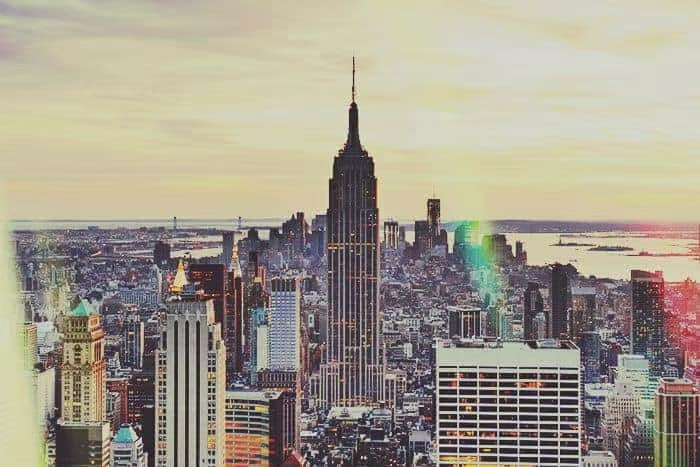
Simulates old faded film photography — washed-out tones, low contrast, optional light leaks. You get 11 free actions from this set, and all of them are built on adjustment layers so every effect stays non-destructive and fully editable. If you want that deliberate cheap-film aesthetic that’s popular in indie and editorial photography, this set covers a lot of ground.
Polaroid & Retro Instant Camera Looks
Polanoid Generator 3 — DeviantArt
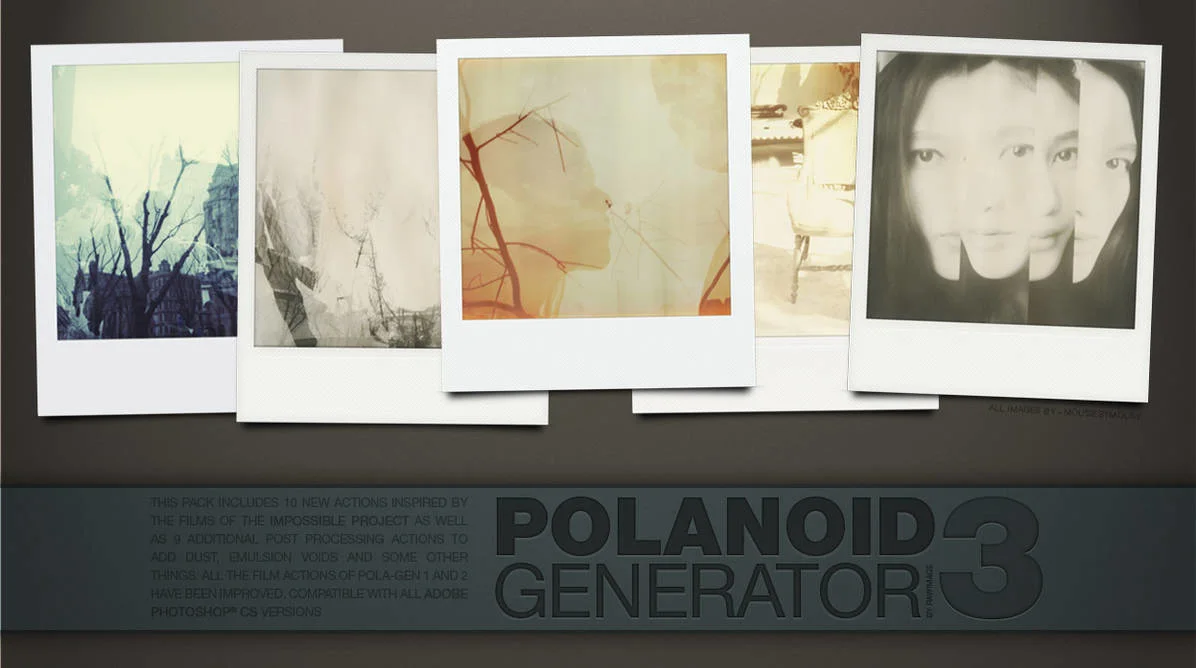
Turns any image into a Polaroid photo, complete with 10 different colour treatments and automatic shadow effects. It’s the kind of action you download once and never delete — it works across portraits, products, food photography, and travel shots equally well.
The Mini Collection — FilterGrade
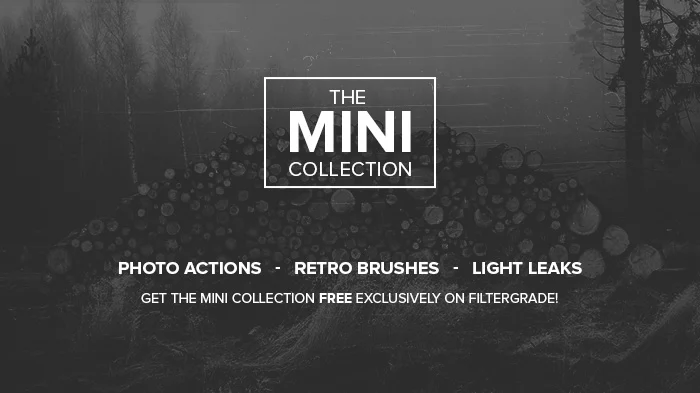
A free sampler from FilterGrade that includes vintage retouching actions, a set of light leak overlays, and a bundle of vintage Photoshop brushes. It’s a taster of their larger paid product, but the free version alone gives you enough to cover most vintage editing needs without paying anything.
Faded, Matte & Washed-Out Film Effects
Creamy Vintage — ShutterPulse
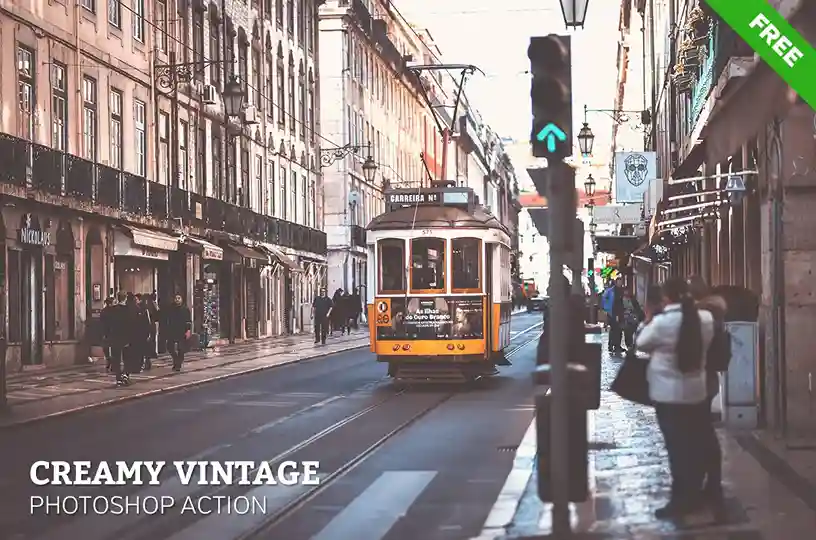
Brightens and softens the image simultaneously, giving it a warm, slightly overexposed retro feel. The tones are creamy rather than harsh, which means it doesn’t overpower the original photo. Good for any image where you want a subtle vintage touch rather than a heavy-handed filter look
Set of 14 Vintage Actions — DeviantArt (by Yeonseb)
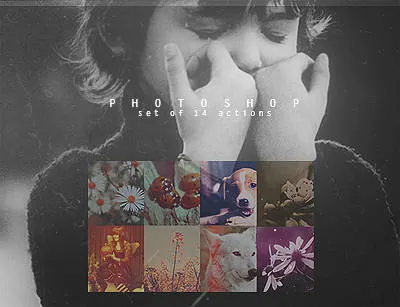
If you’re not sure which vintage style suits a particular photo, this pack of 14 assorted actions lets you try a range of approaches quickly. From muted and earthy to warm and high-contrast — the variety means you’ll find something that fits most photos you try it on.
Cinematic Technicolor & Film Tones
Split-Toned Action — Speckyboy
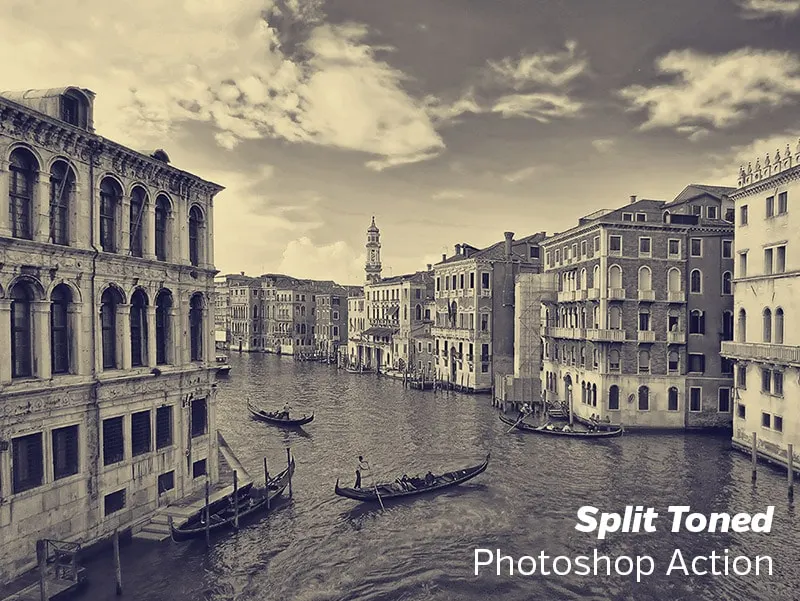
Applies different colour tones to shadows and highlights independently — the same technique used in professional cinema colour grading. Gives portrait and street photography a cinematic quality without any complex manual grading work.
VHS Glitch Effect
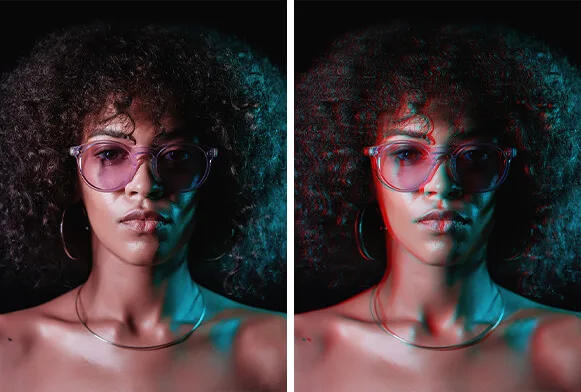
Mimics the visual distortion of an old VHS tape: scan lines, colour bleeding, and tracking errors. Non-destructive, so you can dial back the intensity after applying. Works well for album covers, social media content, and anything with a retro-tech aesthetic.
Best Free Photoshop Actions for Black & White Photography
Converting a photo to black and white is straightforward, but a great monochrome edit requires more than just removing colour. Contrast handling, tonal range, grain management, and texture all make the difference between a flat grey image and a striking photograph. These actions handle that complexity for you.
Bold High-Contrast B&W
Bold B&W HDR — ShutterPulse
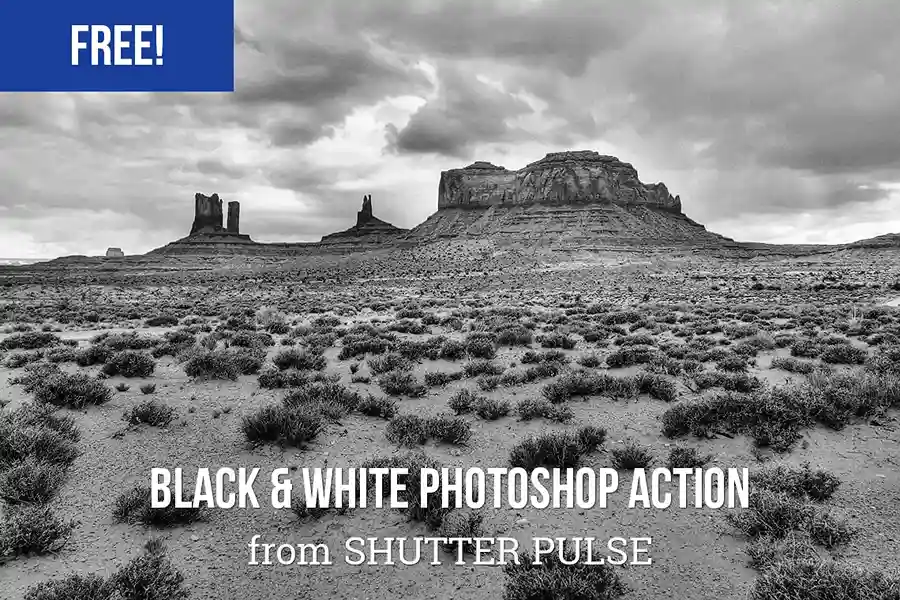
Applies a high-dynamic-range treatment to black and white images. Most HDR tools focus on colour photos, but this action brings out the same punchy, detail-rich look in monochrome. Strong shadows, bright highlights, and a lot of visual weight. Works well for architecture, street, and dramatic portrait work.
Old and Dirty — ExposureEmpire
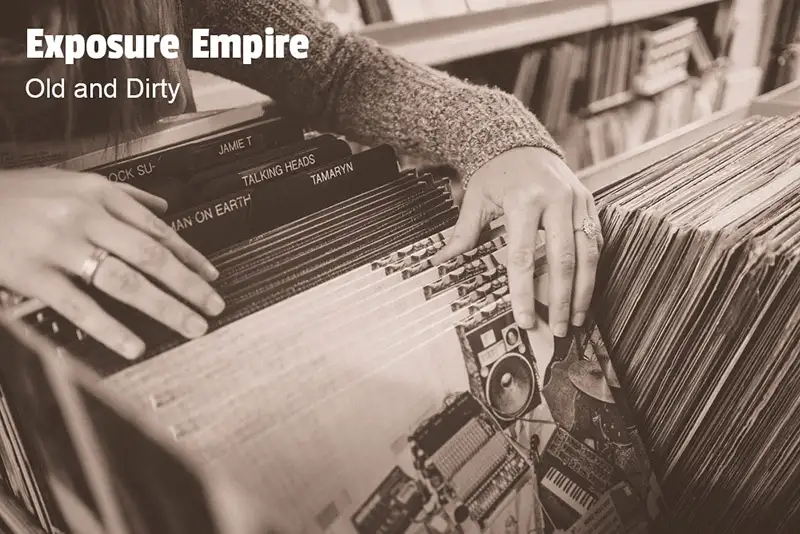
Compatible with both Photoshop and Lightroom. Converts to black and white with intentional imperfection — subtle grain, uneven tonal distribution — that makes the image feel aged and documentary. The result has a photojournalistic quality that clean B&W conversions don’t typically capture.
Infrared, Fine Art & High Key Effects
High Key — DeviantArt
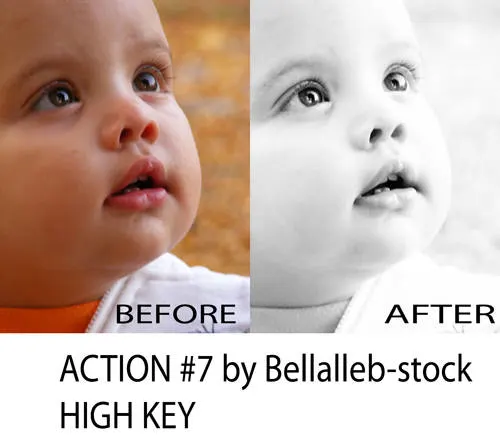
Converts a regular portrait into a high-key image — clean whites, soft shadows, and a dreamy, overlit look with strong clean lines. Requires attribution (credit to the creator) for free use. Best for beauty and fashion photography.
Lithprint — DeviantArt
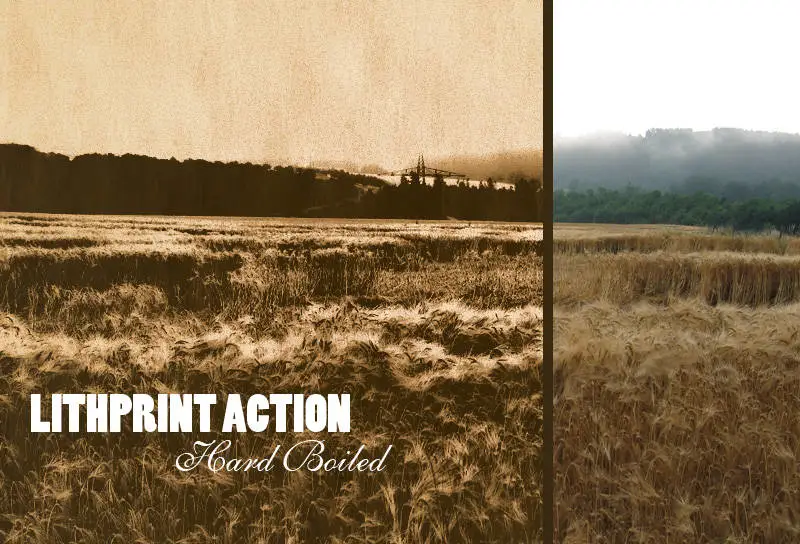
Recreates the look of lithograph printing — a high-contrast style used in traditional print media. Works best on larger files that have already received some contrast treatment. Not an everyday action, but excellent for fine art or editorial work that needs a printed-on-paper quality.
Film Effect Action — Speckyboy
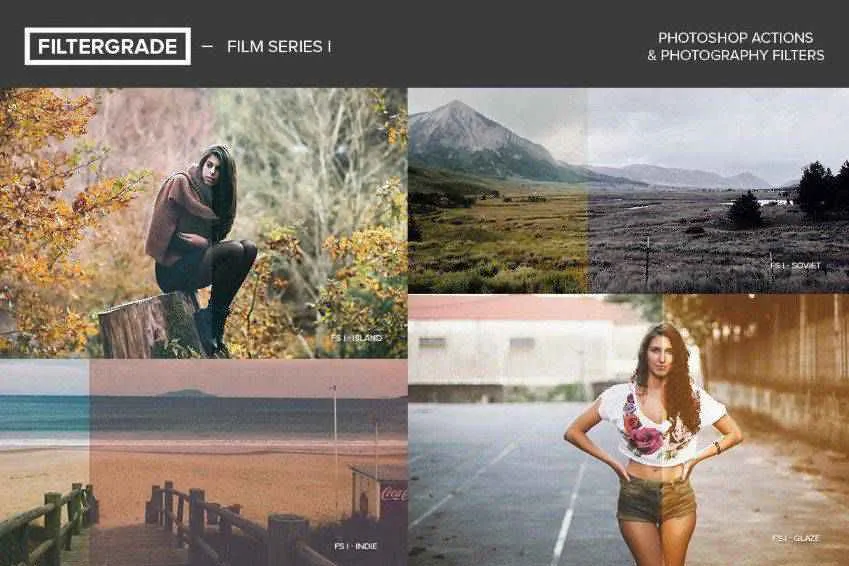
Warms colours, adds contrast, and gives images a film-based tonal quality. Non-destructive, so you can reduce the intensity at any point after applying.
Best Free Photoshop Actions for Special Effects
These sit outside the typical photography workflow. They’re for creating dramatic visuals, artistic conversions, or stylized content for social media, creative campaigns, and commercial projects.
Dispersion & Disintegration Effects
Dispersion Effect — PsdDude
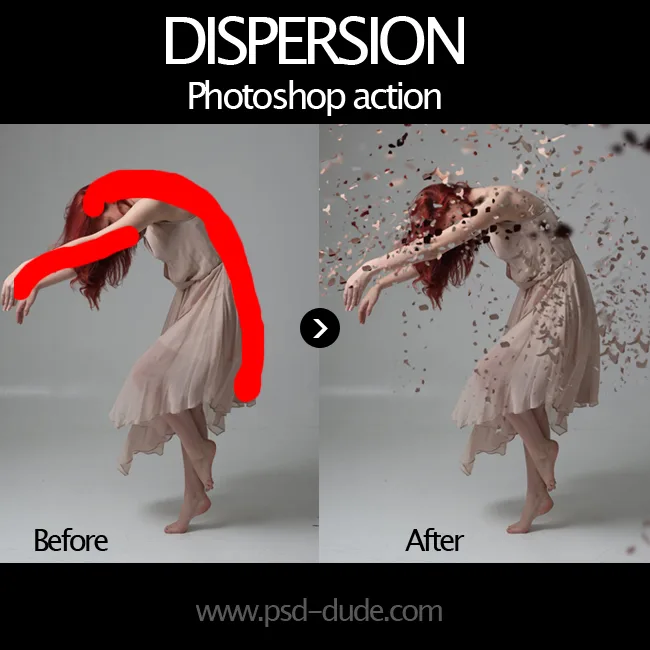
Makes a subject look like it’s exploding or dissolving into particles. The action keeps all layers intact after running, so you can modify and refine the result however you like. One important limitation: it only works on 72 dpi images in RGB color mode, so you’ll need to convert your image settings before applying.
Powder Explosion & Drama Effects
Powder Explosion — Medialoot (by Diego Sanchez)
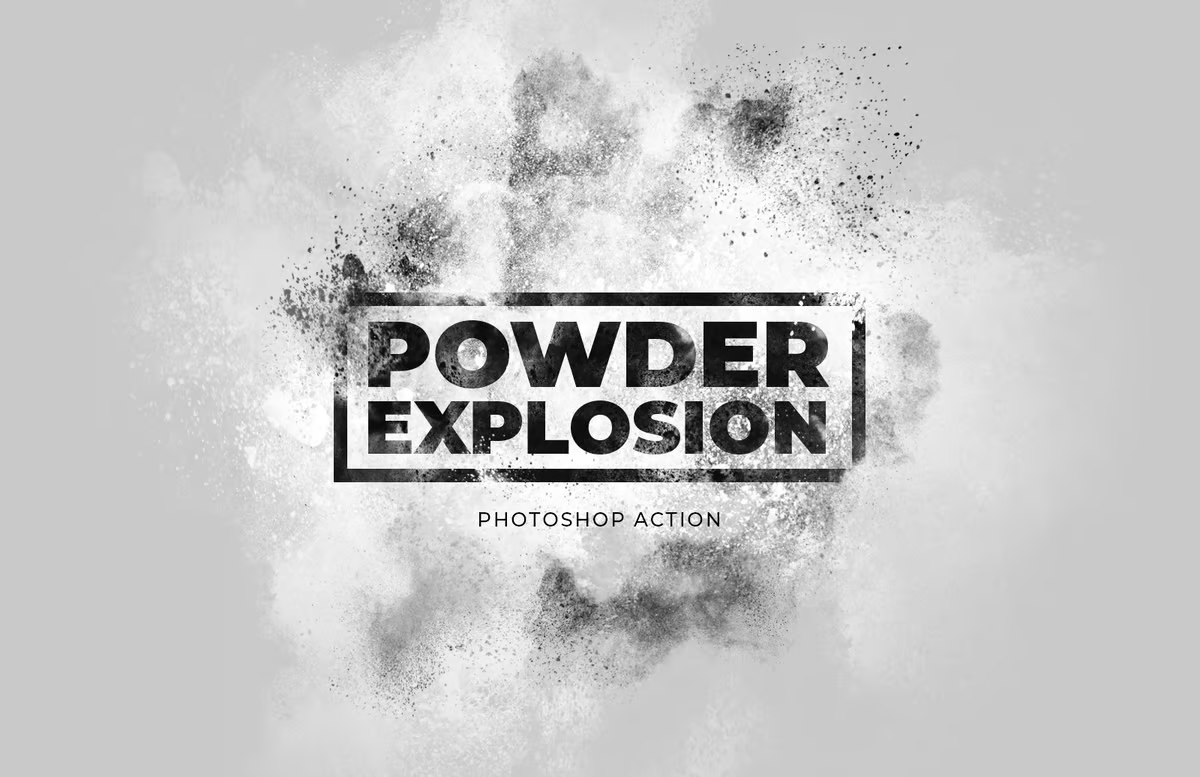
Replicates the look of powder-throw photography — the kind you see in dance and fitness photography — without a studio setup. It won’t match the realism of actually shooting with powder, but for adding energy and visual drama to a photo, it does the job. Free use requires crediting Diego Sanchez as the creator.
Nightmare — ShutterPulse
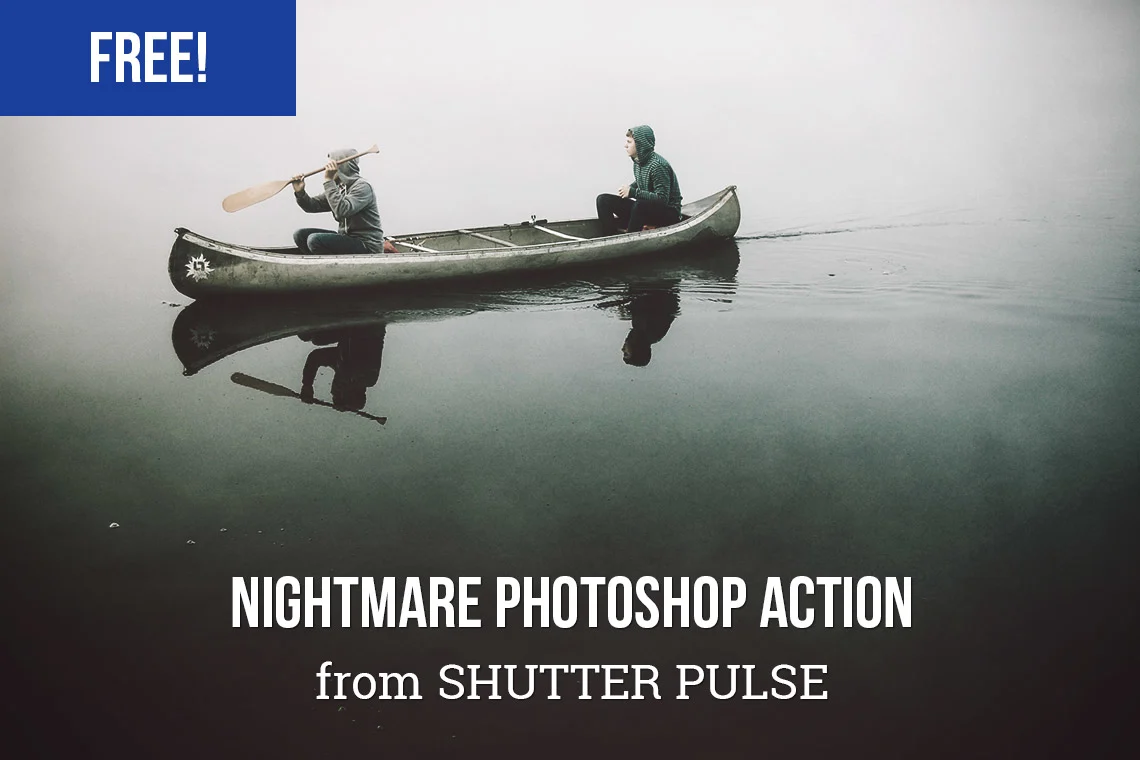
For when the brief calls for something dark and unsettling. Deep shadows, desaturated tones, and a general sense of dread. Works well for editorial, horror content, and darker creative projects.
Artistic & Painterly Conversions
Free Photoshop Watercolors — Adobe Exchange (by Nuwan Panditha / BlackNull)
Converts a digital photograph into something that genuinely looks like a watercolour painting. Created for Adobe directly, so it comes with a proper usage guide and it’s well-documented. Works best on images between 2,000 and 5,000 pixels wide, and photos with a good balance of shadows, midtones, and highlights give the best results. Adjust the brightness of your image before running for the cleanest output.
Michelangelo Painting Action — Speckyboy
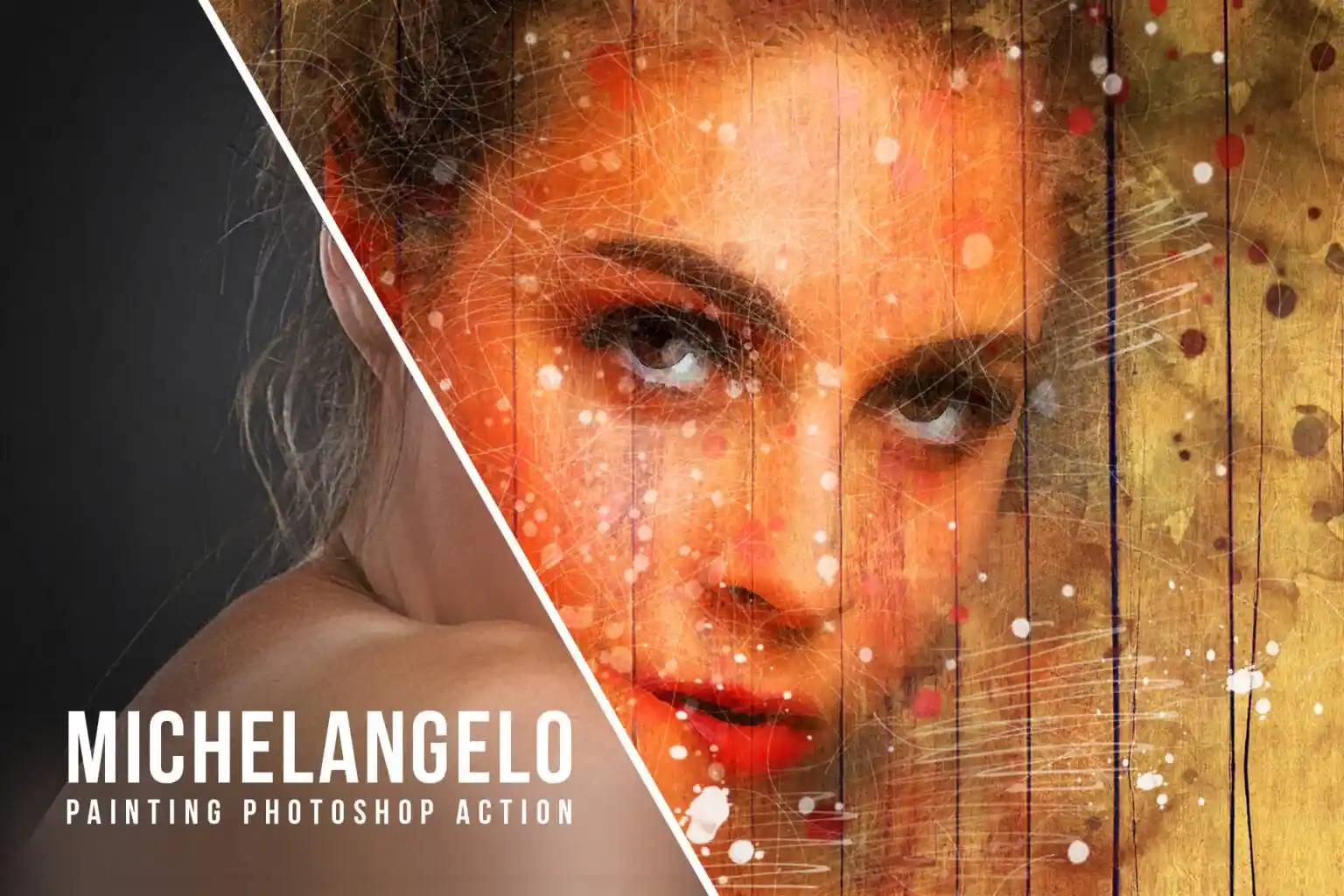
Transforms photos into a painterly artwork style. The download includes a free ABR brush file and PAT pattern file — both are needed for the effect to work properly, so read the included instructions before running it.
Adobe’s New Built-In Actions Panel — What Changed in 2025–2026
This deserves its own section because a lot of Photoshop users don’t know this panel exists yet. And it’s genuinely changed how fast you can work.
Photoshop 26.6 (April 2025) introduced the reimagined Actions panel in Photoshop Beta. By Photoshop 27.6 (April 2026), it rolled out to the full release with expanded functionality.
Here’s what the new panel actually does differently:
The biggest change is the natural language search bar. Type what you’re trying to do — “make this warmer,” “add a vintage feel,” “a soft glow effect,” “make it pop” — and Photoshop returns a list of relevant built-in actions based on your description. You don’t need to know the action name, the category it’s in, or where to look for it.
The Essentials tab organizes pre-built actions into six categories: Basic Adjustments, Subject & Background, Creative Effects, Guides, Resize, and Export. If you’re new to Photoshop, this is a good way to discover what’s possible.
The live hover preview is probably the most immediately useful addition. Mouse over any action name, and you see the result on your actual open image before committing. No more applying, undoing, and trying again.
Single history state is a quiet but genuinely helpful change. The whole action applies as one undo step — one Ctrl+Z clears the entire thing. With older Classic Actions, complex multi-step actions created dozens of history states, which made undoing messy.
Subject/background targeting lets you apply any action exclusively to the subject or background of the image, using the three-dot menu next to each action. For portrait work where you want to retouch the background independently of the subject, this is a significant time-saver.
Your downloaded Classic Actions haven’t gone anywhere. Click the hamburger icon in the Actions panel → Classic Actions to access them exactly as before.
How to Create Your Own Photoshop Actions
Once you understand what actions do, creating your own is the logical next step. It’s not a technical process — if you can follow your own editing steps, you can record them.
Recording Your First Action
- Open an image in Photoshop
- Go to Window > Actions (or press
Alt+F9on PC /Option+F9on Mac) - First, create an Action Set (the folder icon at the bottom of the panel) — actions must live inside a set; they can’t exist on their own. Give the set a category name like “Portraits” or “Landscape Edits”
- Click the New Action button (the + icon)
- Give it a clear, descriptive name — something that tells you what it does when you see it six months later
- Click Record (the red circle)
- Perform every editing step you want to automate — Photoshop records every command, filter, and adjustment you apply
- Click Stop (the square icon) when you’re done
To test it: open a different image, select your action in the panel, and hit Play. If something’s off, you can go back, select the last step in your action, click Record, and add more steps from that point.
Assigning Keyboard Shortcuts
When creating a new action, you’ll see a Function Key option in the dialog box. Assign any function key — for example F3, or combinations like Ctrl+Shift+F3 on Windows and Command+Shift+F3 On Mac — to trigger the action from the keyboard.
A few things to know: on Windows, F1 is off-limits, and F4 or F6 can’t be combined with Ctrl. Also, if you assign a shortcut that’s already used elsewhere in Photoshop, it will run your action instead of the original command — so test it after assigning.
Adding Stops for Manual Steps
Some editing decisions can’t be recorded — painting with a brush, for example, or making a judgment call on a selection. For those, you can insert a Stop mid-action.
A Stop pauses playback and shows a custom message you’ve written — like “Select the skin area, then press Play to continue.” Once the manual step is done, clicking Play resumes the rest of the action automatically.
Saving and Sharing Your Actions
To save: hamburger icon in the Actions panel → Save Actions → choose a location → Save. The file saves as a .ATN file.
To share: send that .ATN file however you like — email, Dropbox, WeTransfer. The recipient installs it using the Load Actions method covered above.
If you want a readable text backup of what your actions actually do, hold Ctrl+Alt (Windows) or Cmd+Option (Mac) When clicking Save Actions. This exports a text file documenting every step — useful for your own records, but note that it can’t be reloaded back into Photoshop.
Best Websites to Download Free Photoshop Actions
Not all download sites are equal in quality. Some are cluttered with low-quality packs, some require sign-ups just to access a single file, and a few are genuinely worth bookmarking. Here’s where to look:
Fix The Photo (fixthephoto.com) — Well-organised, consistent quality. Many actions are compatible across CS3 through current CC versions. Good focus on portrait and wedding photography.
Brusheezy (brusheezy.com) — One of the longest-running free design resource sites. The library is easy to browse by category, and the quality level is generally reliable.
DeviantArt (deviantart.com) — Community-driven and massive in scope. Quality varies more than curated sites, but the best packs here are excellent. Always check the creator’s notes for license terms and version compatibility before using.
Spoon Graphics — Clean, well-made resources. Not just actions — brushes, textures, and templates too. Smaller selection but higher average quality.
ShutterPulse — Focused entirely on photography editing. Small selection of free actions, but all of them are purpose-built and well-made.
FilterGrade (filtergrade.com) — Free taster packs from professional-grade products. Good way to try premium-style actions before deciding if you want the full paid version.
Medialoot — Well-designed resource packs. A mix of free and paid. The free selection includes genuinely useful special effects.
PsdDude (psddude.com) — Tutorials and free resources, particularly strong for special effects actions.
Adobe Exchange (exchange.adobe.com) — Adobe’s own marketplace. Free actions here are curated and guaranteed to be compatible with current Photoshop versions.
Speckyboy (speckyboy.com) — Design resource roundups with a solid collection of free action packs and direct downloads across multiple categories.
Resourcepik (resourcepik.com) — Free graphic design resources covering Photoshop actions, mockups, fonts, textures, brushes, and illustrations. Also includes browser-based design tools you can use directly without opening Photoshop.
A quick note on safety: A .ATN file by itself cannot carry or execute a virus. The risk only comes from files disguised as actions that are actually .EXE files — those should never be run. Stick to the sites above and you won’t run into that problem.
Frequently Asked Questions
Are free Photoshop actions safe to download?
Yes, as long as you download from reputable sources. A .ATN file on its own cannot execute code or carry malware. The only risk is when a file is labelled as a Photoshop action but is actually an .EXE or other executable — never open those. Trusted sources like Fix The Photo, Brusheezy, Adobe Exchange, and Speckyboy are safe to download from without concern.
Do Photoshop actions work on all versions of Photoshop?
Most modern free actions are compatible with CS6 and above, which covers all versions through to Photoshop 2025 and later. Some older DeviantArt packs may have version limitations listed by the creator. Actions built on adjustment layers tend to be the most backwards-compatible because they rely on features that have been in Photoshop for a long time. Always check the creator’s notes or the included readme file for specific compatibility information.
What’s the difference between Photoshop actions and Lightroom presets?
They do similar things but work in fundamentally different ways. Lightroom presets adjust colour, exposure, tone, and basic image settings — instantly, in one click. They work great for processing large volumes of photos quickly, especially when the lighting is consistent across a shoot. Photoshop actions are more capable: they can work with layers, masks, blending modes, filters, and complex multi-step edits that Lightroom can’t do at all. If you need to process 500 wedding photos fast, Lightroom presets are the better tool. If you need intricate retouching, artistic effects, or background removal, actions are what you want.
Can I use free Photoshop actions for commercial projects?
It depends on the license, and it varies by creator. Some free actions are for personal use only. Some require you to credit the creator in your work. Some are fully open for commercial use without restrictions. This information is typically in the download page description or a readme file inside the ZIP. When the license isn’t clear, email the creator and ask before using for paid client work. Don’t assume that “free” automatically means “no restrictions.”
What does the .ATN file format mean?
.ATN is Photoshop’s native action file format. It stores the complete sequence of recorded editing steps inside a single file. You load .ATN files into Photoshop via the Actions panel, and you save and share your own actions in the same format. The format is specific to Adobe Photoshop — it doesn’t open or function in other software.
Can I edit or modify a downloaded Photoshop action?
Yes. In Classic Actions mode, click the triangle (>) beside any action to expand it and see every individual step. You can toggle specific steps on or off, rearrange them, or double-click any step to change its settings. To add new steps: select the action, click on the step you want to add after, and press Record to continue adding from that point. It’s a straightforward way to customize a downloaded action to better fit your specific workflow.
How do I organize a large Photoshop actions library?
Use Action Sets (folders) to group related actions. Name them clearly — “Wedding Retouching,” “B&W Effects,” “Landscape,” “Special FX” — so you can find what you need at a glance. You can drag and drop actions between sets and rename anything that’s unclear. For the actions you use most, enable Button Mode (hamburger menu → Button Mode) to convert your entire library into color-coded clickable buttons. Much faster than scrolling through a long list when you’re mid-edit.
What happens if I run an action on the wrong image by accident?
Press Ctrl+Z (Windows) or Cmd+Z (Mac) to undo. If you’re on Photoshop 2025 or later with the new Actions panel, the entire action applies as a single history state — one undo clears it completely. With Classic Actions on older versions, you may need to step back through history multiple times. If you’re working on an important file, duplicating the layer (Ctrl+J) before running any action is a good habit to build.
Final Thoughts — Where to Start
There are enough free Photoshop actions in this guide to cover almost every editing situation you’ll run into — portrait retouching, landscapes, vintage film, cinematic tones, artistic conversions, and more. And with Adobe’s new natural language Actions panel, getting started is faster than it’s ever been.
The practical advice: pick one use case — skin retouching, vintage effects, or a special effect you’ve been wanting to try — download two or three actions from the list above, and test them on real images for twenty minutes. That’s more useful than downloading 50 action packs you’ll never open.
If you’re looking for more free design resources beyond Photoshop actions — mockups, textures, fonts, brushes, illustrations, and browser-based tools you can use without opening Photoshop at all — Resourcepik has everything organized and free to download.