
The Best Illustrator Brushes for Watercolor, Line Drawing, and Sketching
in Illustrator brushes on April 28, 2026Vector art can sometimes feel a bit flat. If you want to make your designs look more natural, you need the best Illustrator brushes. Whether you want a soft watercolor look, clean ink lines, or a messy pencil sketch, finding the right brush makes a huge difference.
Let’s look at the best tools out there. I’ll share some great downloads (including free ones) and show you how to set them up.
1. Why Use Illustrator Brushes for Watercolor, Line Drawing, and Sketching?
Illustrator is built for perfect curves and clean shapes. But sometimes, you want your art to look like it was actually drawn by a human hand. Custom brushes give you that real, messy feel without losing the benefits of vector art—like being able to resize it as big as you want.
- Watercolor Brushes: Great for soft designs where you want paint bleeds, but without dealing with massive, slow-loading image files.
- Line Drawing Brushes: Perfect for clean, sharp lines needed for logos, technical drawings, or comics.
- Sketching Brushes: Adds texture so your art looks like real pencil or charcoal on actual paper.
2. Best Illustrator Brushes for Watercolor
Digital watercolor is tricky, but these brush packs do a great job of making your vector art look like real, wet paint.
Watercolor Strokes Collection by Freepik
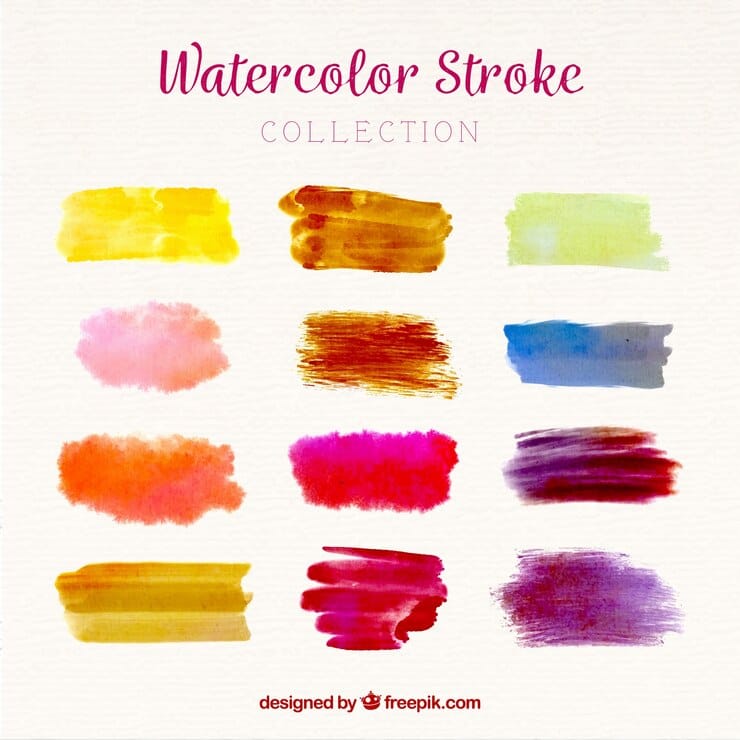
A really solid choice for everyday use. It has lots of different strokes that are perfect for adding soft blocks of color.
Watercolor Illustrator Free Pack by Freepik
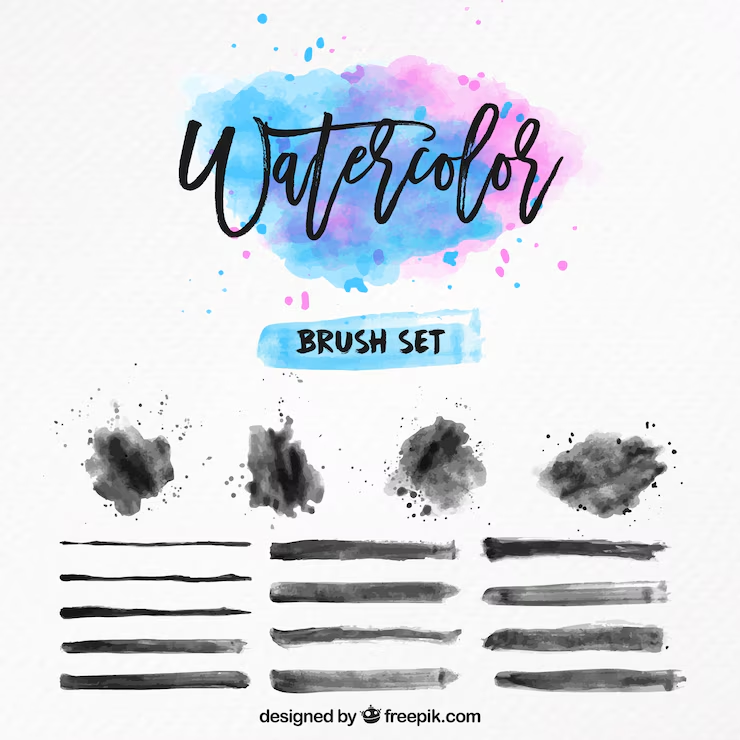
A great lightweight option. Use this to add a subtle paper texture or light background colors.
Vector Watercolor Brush Set by DeviantArt
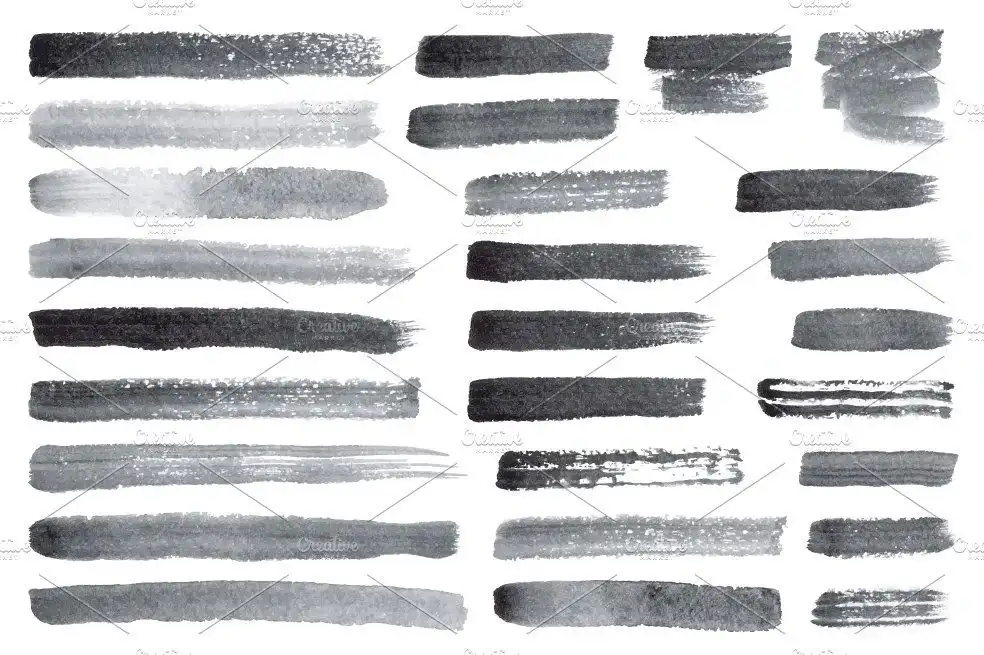
Perfect for artists looking to add a watercolor touch to their vector illustrations.
RetroSupply Company Watercolor Kit
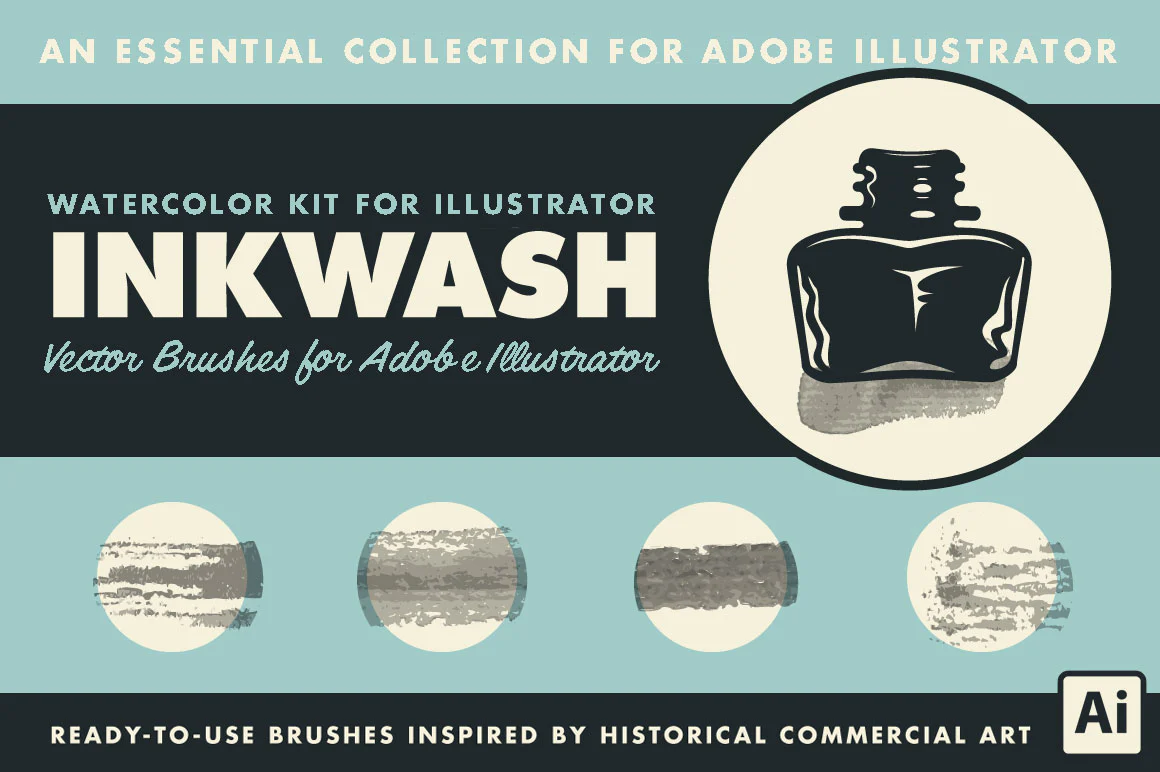
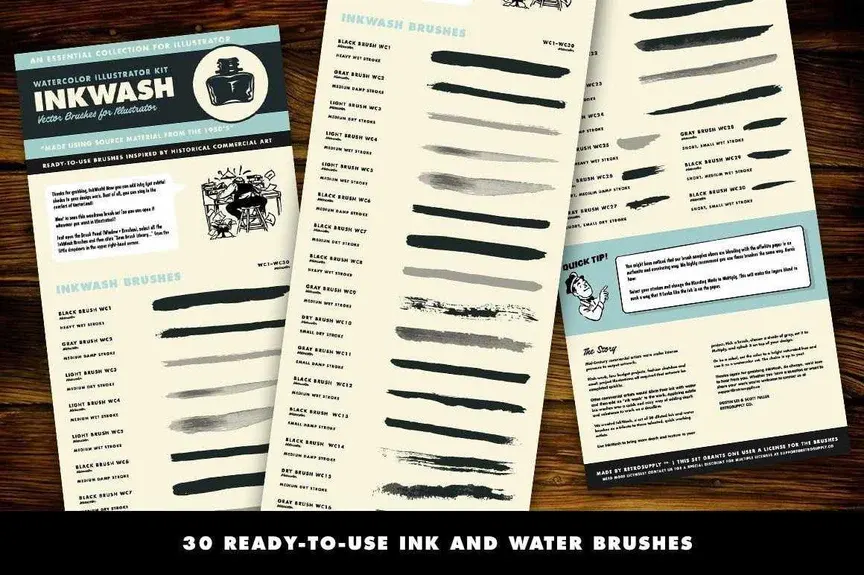
Known for its high-quality brushes, this kit is ideal for creating vintage-inspired watercolor illustrations.
Tip: When using watercolor brushes, layering is important. Start with a light opacity for a base layer, then gradually increase the color for depth. Experiment with blending modes for a more authentic watercolor look.
3. Best Illustrator Brushes for Line Drawing
Sometimes you just want your art to look rough. These tools are perfect for early drafts or when you want a highly textured final piece.
Ink Brushes for Adobe Illustrator
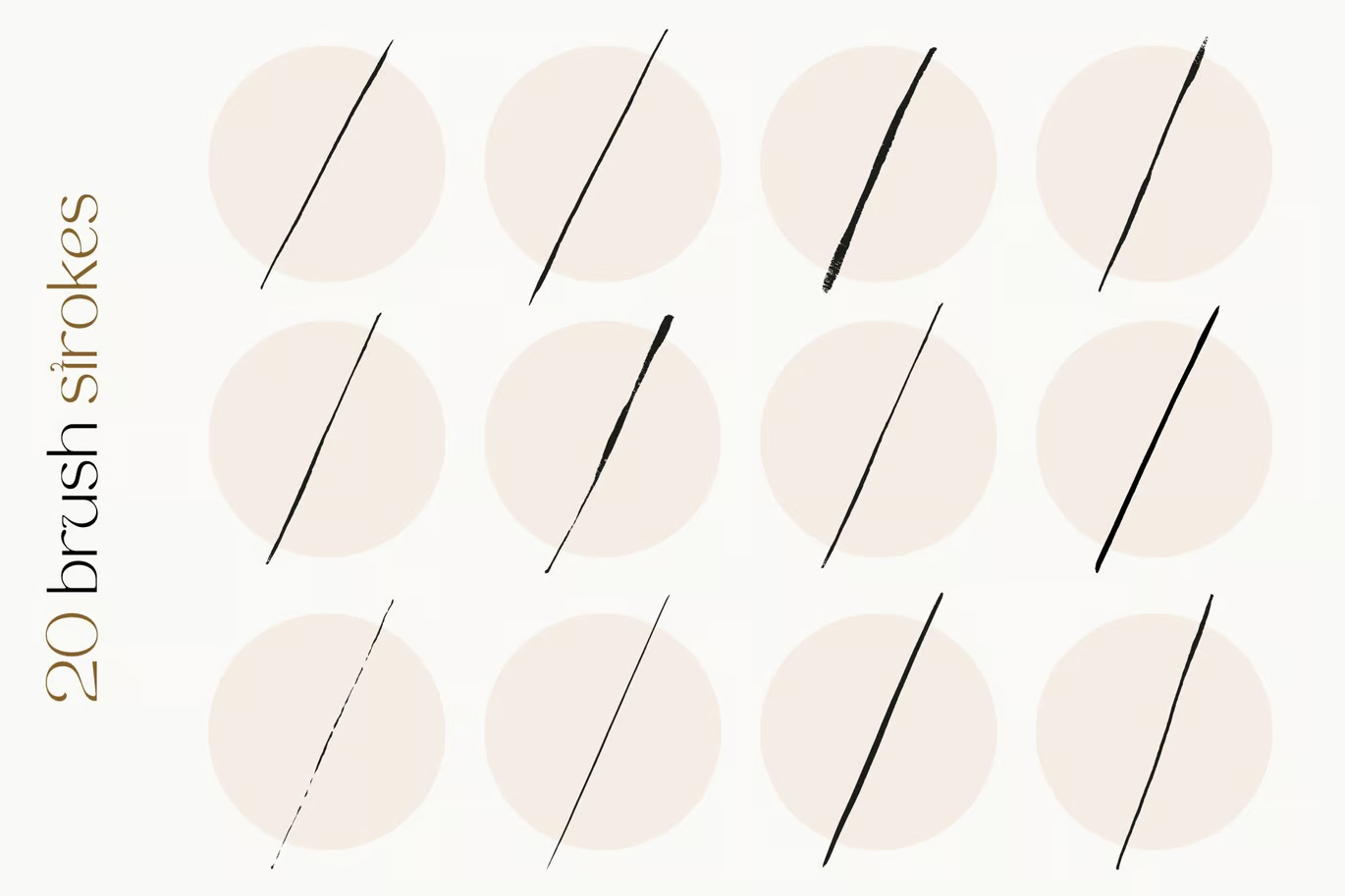
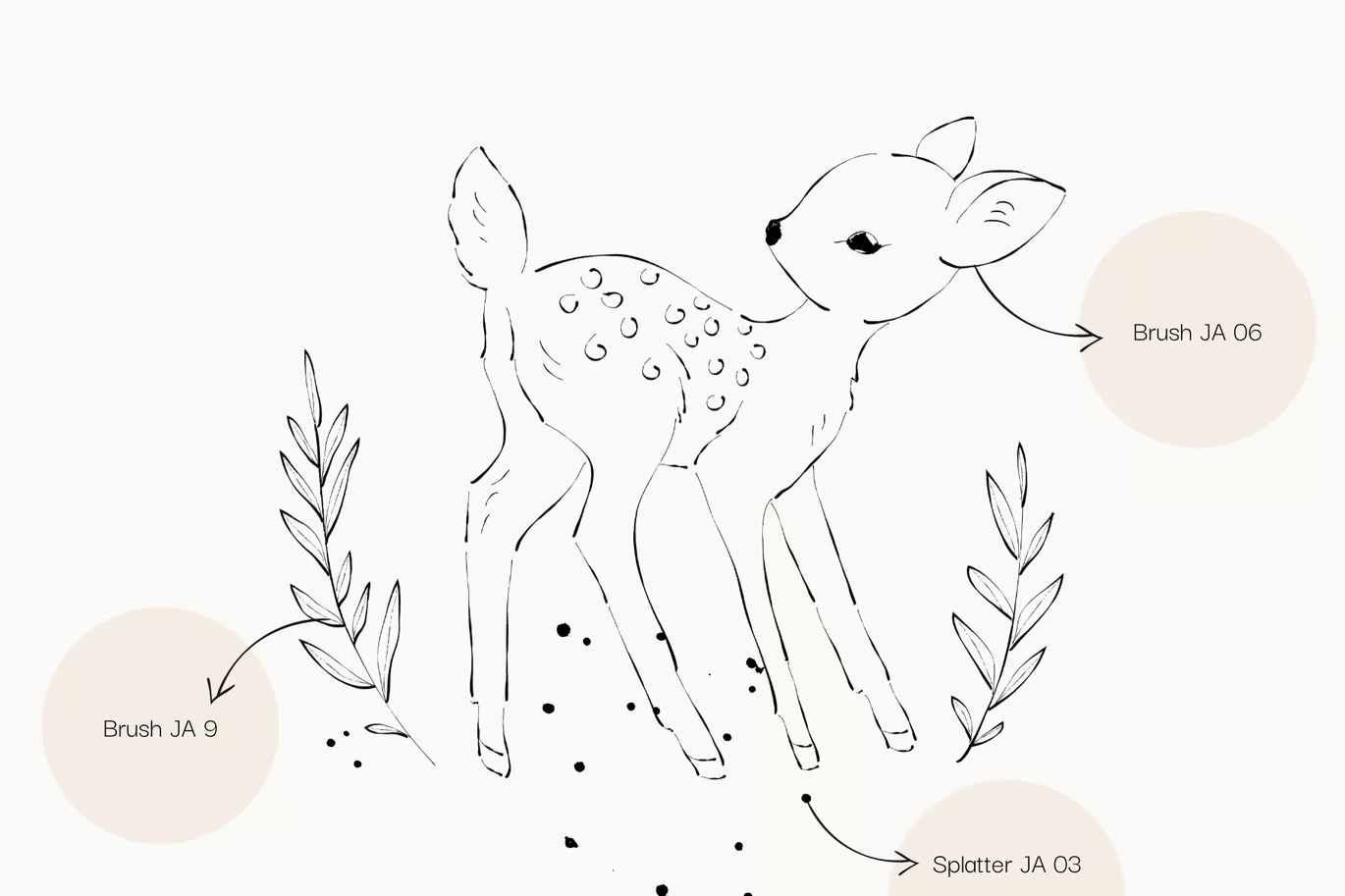
This set offers a collection of high-quality brushes designed to create detailed, ink-style strokes, perfect for enhancing your illustrations with authentic, hand-drawn effects.
Shader Brushes for Illustrator
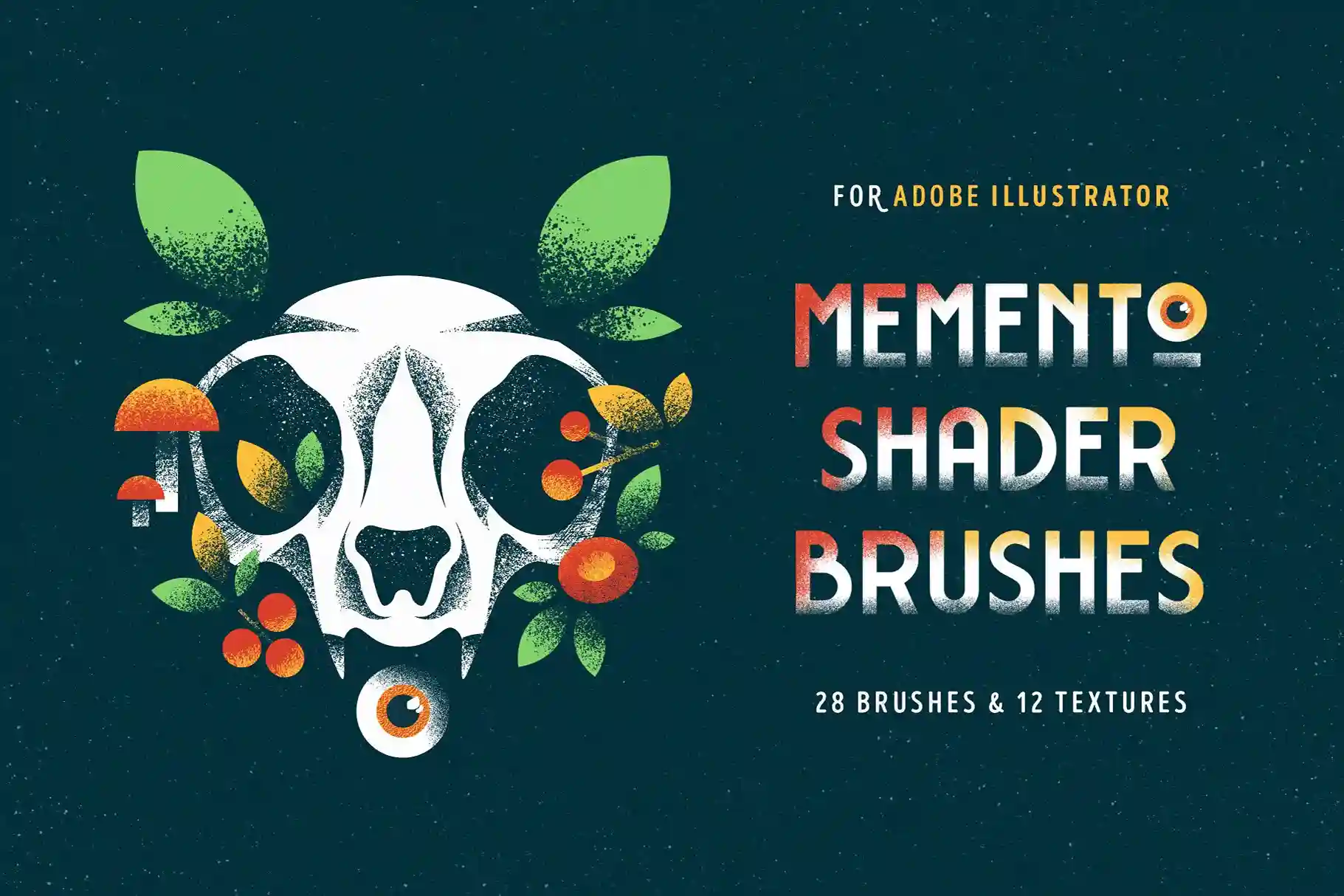
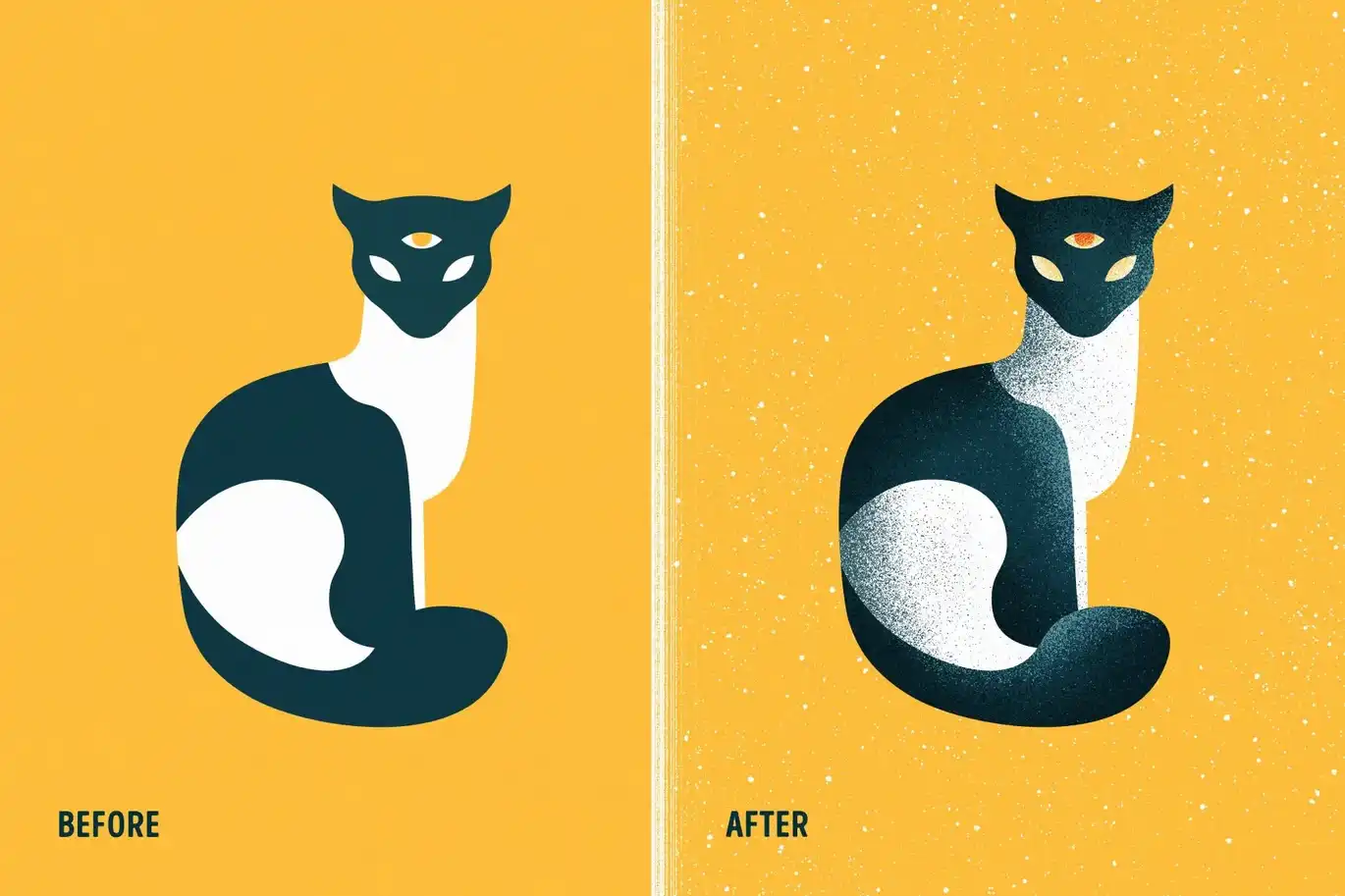
Shader brushes for Illustrator provide a great way to add depth and texture to your digital art. These brushes provide smooth gradients and detailed effects, perfect for enhancing your illustrations with a professional touch. Ideal for adding realistic shading and effective textures to your projects.
Marker Illustrator Brushes
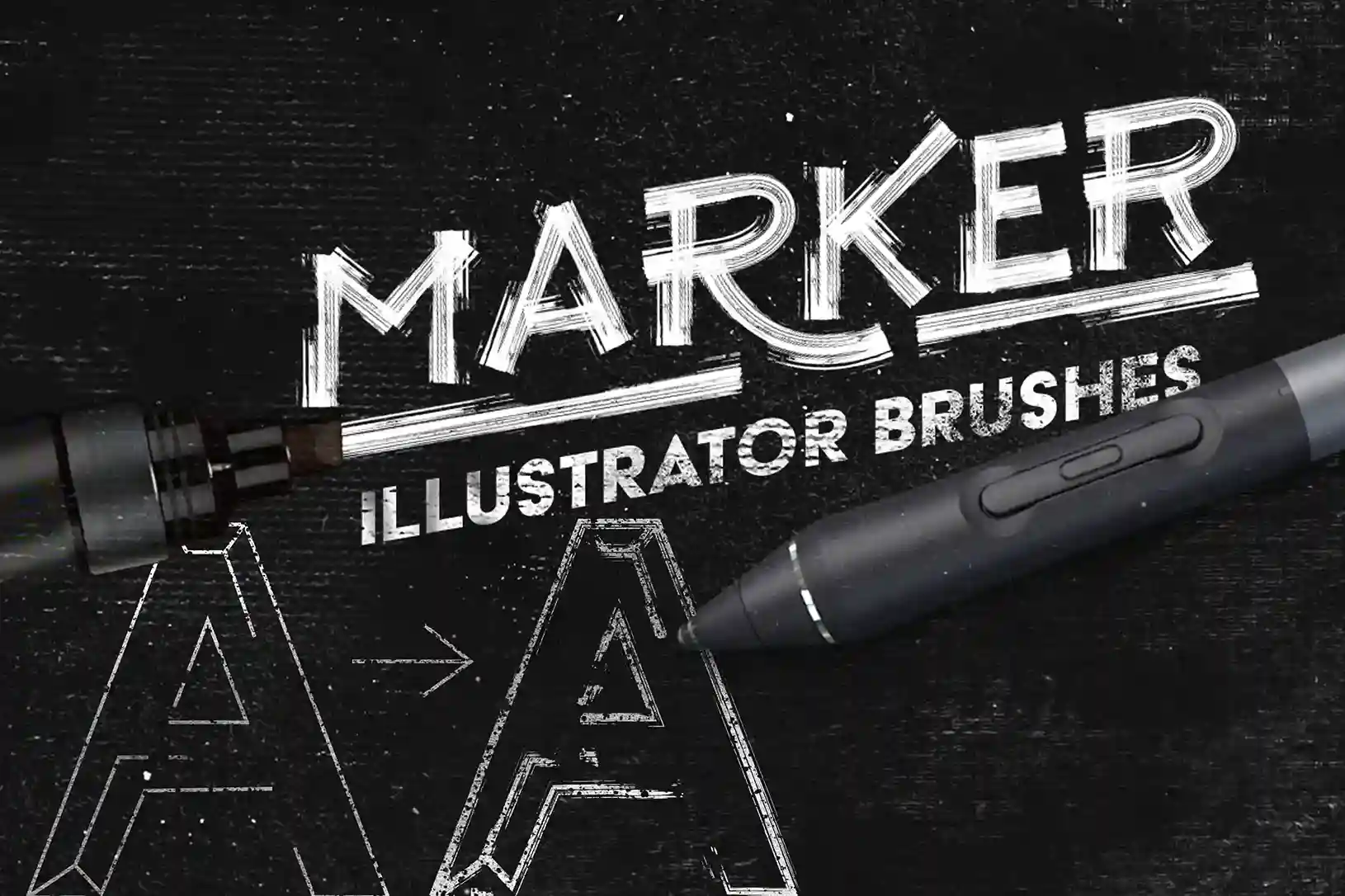
These brushes bring a vibrant, hand-drawn quality to your digital designs. This set includes a range of markers that replicate real-world textures and strokes, perfect for adding bold, expressive lines and rich color effects to your artwork. Ideal for artists looking to achieve an effective, traditional marker look in their digital creations.
Tip: Adjust the stroke weight based on the level of detail required. For more productive designs, use stroke width profiles to add variety to your line work.
4. Best Illustrator Brushes for Sketching
Sketching brushes help bring an organic, hand-drawn feel to your digital illustrations. Whether you’re working on a rough draft or concept art, these brushes will add texture and depth.
Illustrator Pencil Brushes
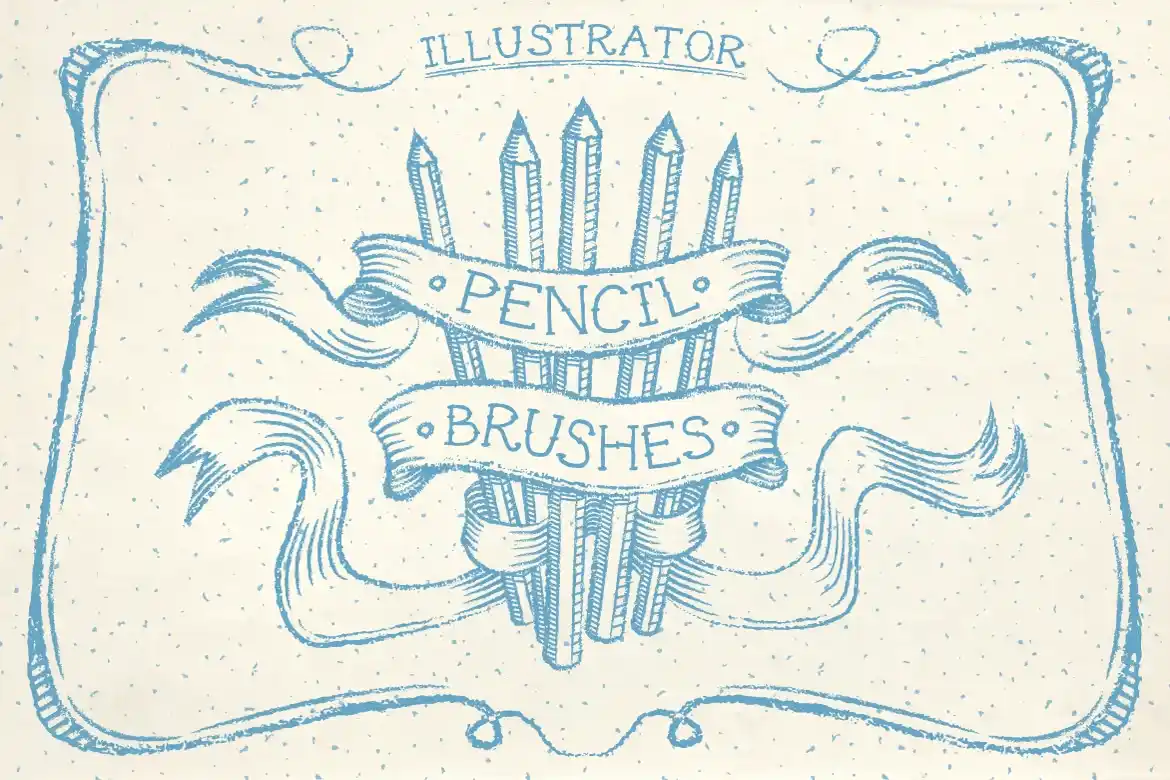
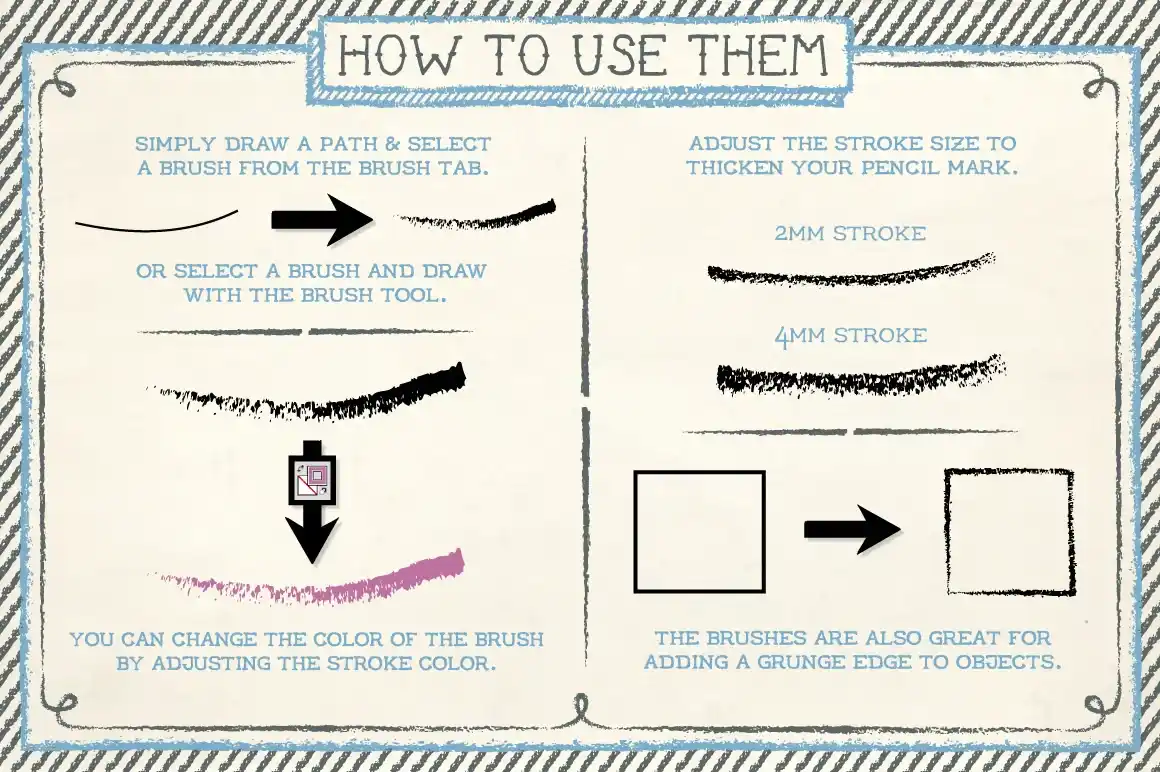
Illustrator Pencil Brushes add the feel of a real pencil to your digital art. This set features a variety of brushes that recreate the look and texture of traditional pencil strokes, making it easy to achieve detailed, hand-drawn effects. Perfect for artists who want to enhance their designs with authentic pencil-like shading and lines
Charcoal Collection
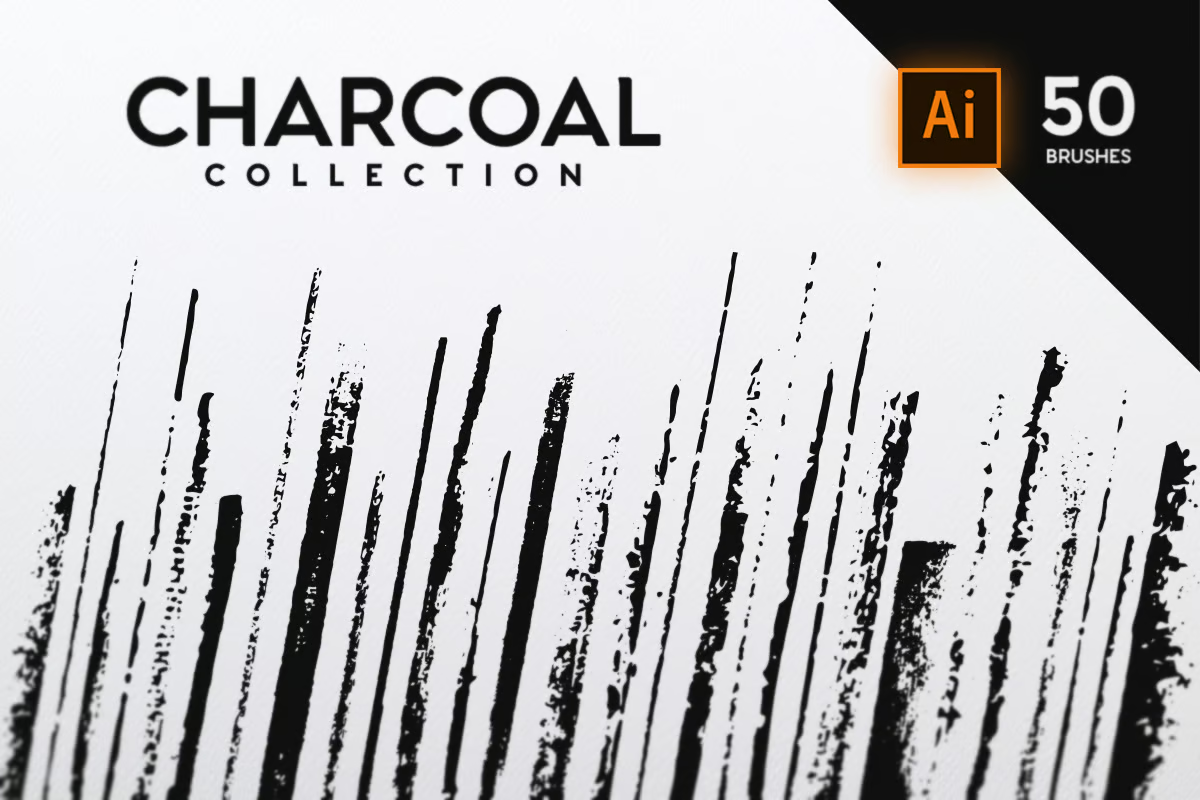
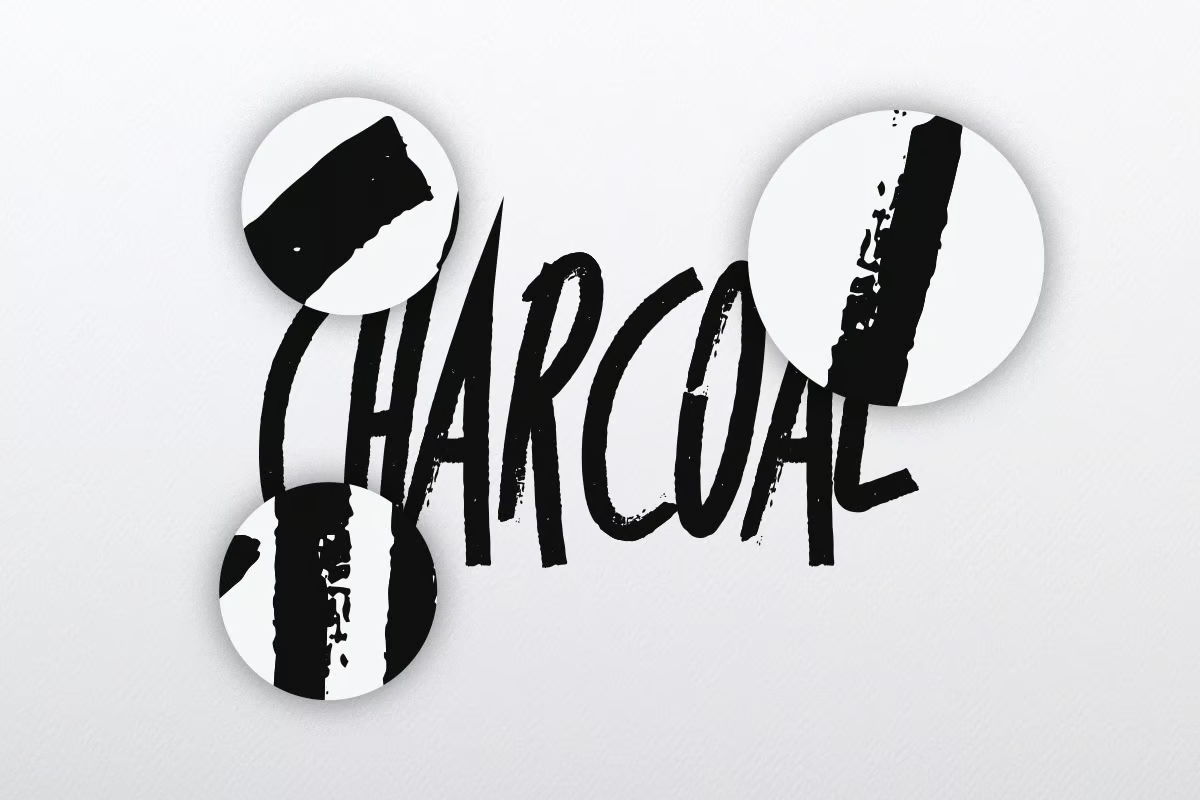
The Charcoal Collection features a variety of brushes that capture the essence of traditional charcoal. This set offers rich, expressive lines and textured effects, perfect for adding depth and strength to your digital artwork. Ideal for artists looking to infuse their designs with a true charcoal feel.
Ideal for bold, expressive lines, these brushes are perfect for adding texture to your work.
Linocut Brushes for Adobe Illustrator
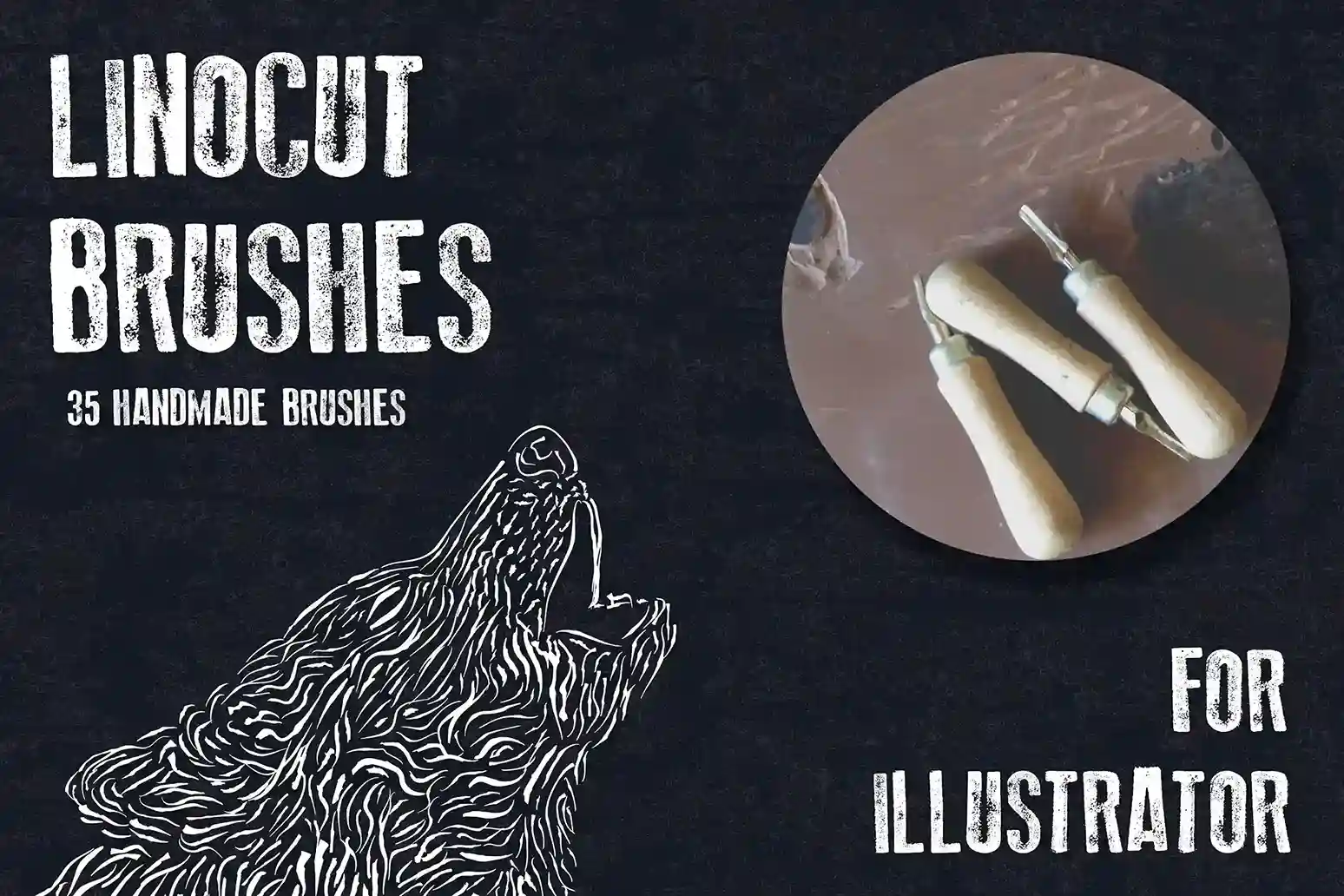
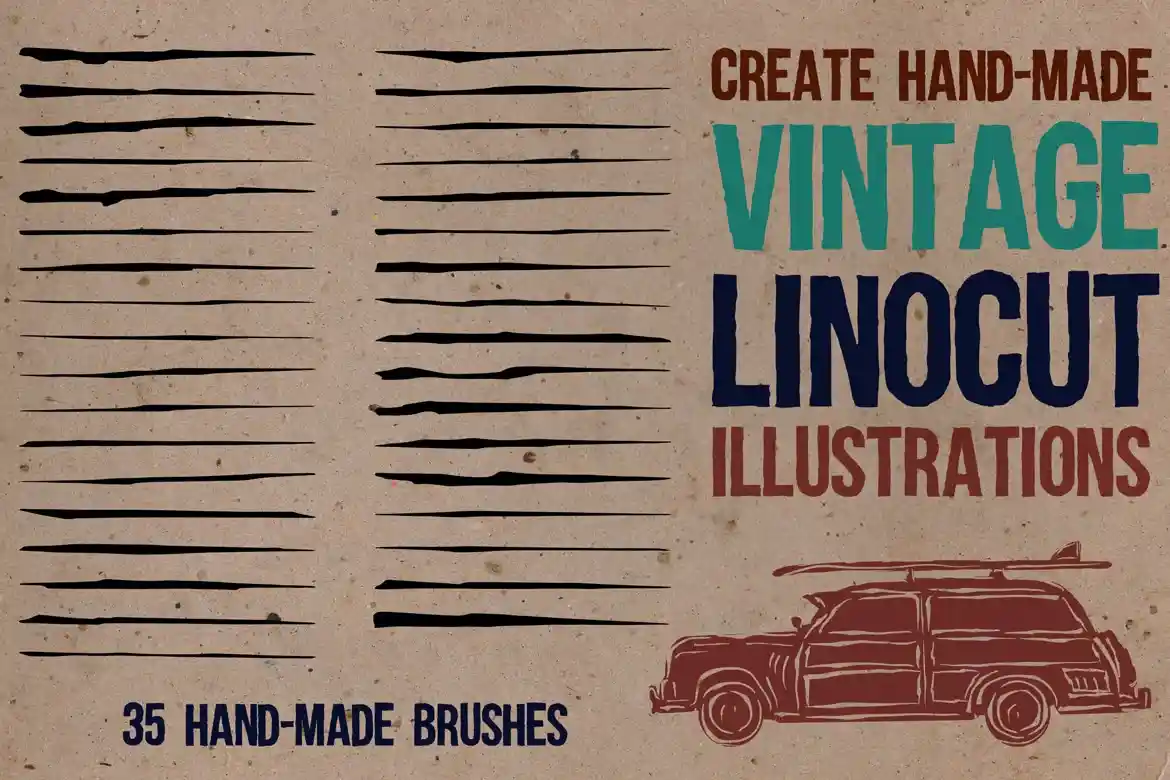
These brushes bring the unique texture and style of linocut printing to your digital designs. This set features brushes that recreate the bold, textured marks of linocut prints, perfect for creating a striking, handmade effect in your artwork. Ideal for adding a unique, personal touch to your illustrations.
Tip: When sketching digitally, always start with light, loose strokes, then build up detail gradually. Try adjusting opacity to create softer or more defined line
5. Free Illustrator Brush Packs Worth Downloading
You really don’t need to spend money to get good brushes. The design community has shared some amazing free tools.
Free illustrator brushes Pack by DeviantArt
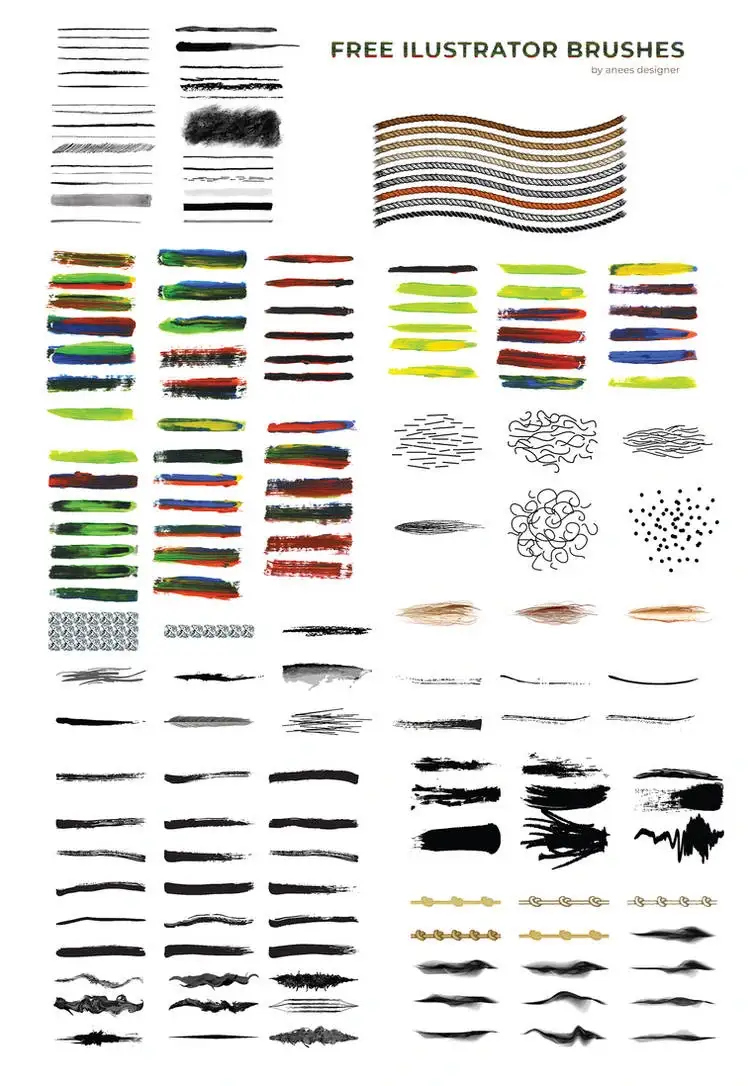
It offers a wide range of brushes at no cost. This set includes various styles and effects, perfect for enhancing your digital designs with a creative and unique touch. Ideal for designers looking to expand their toolkit without spending any money.
Known for a great collection of free brushes, freepik offers packs for watercolor, sketching, and more.
Tip: Always check the licensing terms on free brush packs, especially if you plan to use them commercially. Some come with restrictions, so make sure you’re allowed to use them for client work. Sites like Freepik and DeviantArt usually make this clear in the brush descriptions, so it’s easy to double-check.
6. How to Install and Customize Illustrator Brushes
Once you’ve downloaded some new brushes, installing them in Illustrator is a simple process. But there’s more you can do than just loading them up — customizing them can give your designs a more personal touch.
Installing Brushes:
- Open Illustrator and go to the Brushes panel.
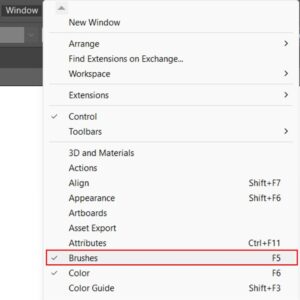
- Click the drop-down menu and select Open Brush Library.
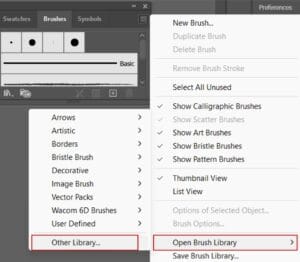
- Navigate to the downloaded brush file and load it into your workspace.
Customizing Brushes:
After installation, you can fine-tune your brushes to suit your project. For example, you can:
- Adjust the stroke weight.
- Modify pressure sensitivity (especially useful if you’re using a graphics tablet).
- Change the texture or opacity for more realistic effects.
For watercolor brushes, changing the opacity or blending mode can give you more control over how colors blend and overlap. With line drawing brushes, adjusting the stroke width profile can make your lines look stronger. Don’t hesitate to experiment!
7. How to Create Custom Illustrator Brushes
If you can’t find the perfect brush, just make one yourself. It’s surprisingly easy.
The Step-by-Step Process:
- Draw the shape: Draw a single, textured shape. Make sure it isn’t too complicated, or it might slow down your computer.
- Convert it: Drag that shape directly into the Brushes panel and hit New Brush.
- Pick the type: Pick Art Brush. This is usually the best option because it stretches your shape nicely along the line you draw.
- Adjust the settings: Turn on your pressure settings and adjust how you want the brush to stretch.
- Save it: Hit OK, and you’re ready to draw.
Pro Tip: Make a few variations. Don’t just make one brush. Make two or three that look slightly different. Swapping between them keeps your drawing from looking repetitive.
Conclusion
Your art is really influenced by the tools you use. By adding some custom watercolor, ink, and sketching brushes to Illustrator, you’ll instantly make your vector art look more natural.
Grab a couple of the free packs I mentioned, load them up, and just play around. Once you get used to layering and changing the settings, you’ll be making awesome, hand-drawn vector graphics in no time.

Categories: Illustrator brushes